<?xml version="1.0" encoding="utf-8"?><feed xmlns="http://www.w3.org/2005/Atom" xml:lang="ko"><generator uri="https://jekyllrb.com/" version="3.10.0">Jekyll</generator><link href="https://flex-trip.net/blog/feed.xml" rel="self" type="application/atom+xml" /><link href="https://flex-trip.net/" rel="alternate" type="text/html" hreflang="ko" /><updated>2026-10-29T01:10:54+00:00</updated><id>https://flex-trip.net/blog/feed.xml</id><title type="html">여행 계획 수립</title><subtitle>유연하게 바꾸는 여행 계획 앱 여행 계획 수립(Flex Trip Planner)</subtitle><entry xml:lang="ko"><title type="html">짠 여행을 KML로 내보내 Google 내 지도에서 보기</title><link href="https://flex-trip.net/blog/export-to-my-maps/" rel="alternate" type="text/html" title="짠 여행을 KML로 내보내 Google 내 지도에서 보기" /><published>2026-10-21T06:00:00+00:00</published><updated>2026-10-21T06:00:00+00:00</updated><id>https://flex-trip.net/blog/export-to-my-maps</id><content type="html" xml:base="https://flex-trip.net/blog/export-to-my-maps/"><![CDATA[<p>여행 계획을 큰 화면에서 보거나, 앱을 쓰지 않는 동행에게 지도로 보여 주고 싶을 때가 있습니다. 여행 계획 수립에서 여행에 쓰인 장소를 <strong>KML</strong>로 내보내면 Google 내 지도(My Maps)나 Google 어스에서 열 수 있습니다.</p>

<p>이 글에서는 <a href="/blog/import-my-maps/">앞 글</a>에서 만든 교토 3일 여행을 다듬은 뒤 다시 내 지도로 보내 봅니다.</p>

<h2 id="1-여행-정보에서-장소-내보내기">1. 여행 정보에서 “장소 내보내기”</h2>

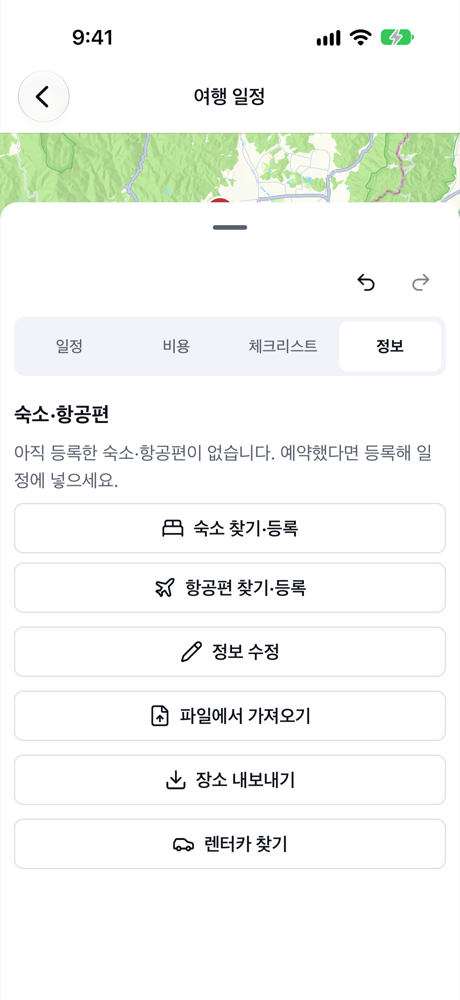
<p>여행을 열고 <strong>정보</strong> 탭에서 <strong>장소 내보내기</strong>를 누릅니다.</p>

<figure class="shot">
  <img src="/assets/img/blog/p6-info.png" alt="교토 3일 여행 정보 탭의 장소 내보내기 버튼" loading="lazy" width="390" height="848" /><figcaption>여행 정보의 장소 내보내기</figcaption>
</figure>

<h2 id="2-범위와-형식-고르기">2. 범위와 형식 고르기</h2>

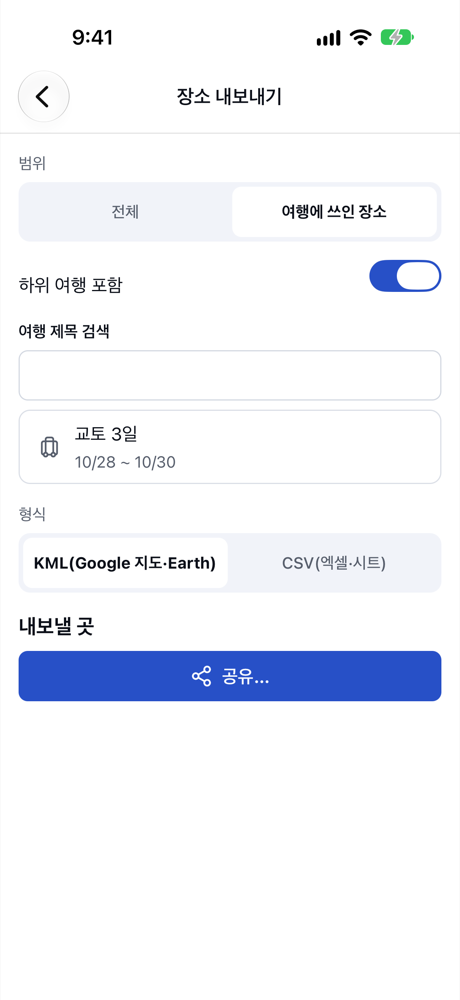
<p><strong>장소 내보내기</strong> 화면에서 범위는 <strong>여행에 쓰인 장소</strong>, 형식은 <strong>KML(Google 지도·Earth)</strong>을 고릅니다.</p>

<figure class="shot">
  <img src="/assets/img/blog/p6-export.png" alt="장소 내보내기 화면: 범위 여행에 쓰인 장소, 하위 여행 포함 켜짐, 여행 교토 3일, 형식 KML(Google 지도·Earth), 내보낼 곳 공유…" loading="lazy" width="390" height="848" /><figcaption>여행에 쓰인 장소를 KML로</figcaption>
</figure>

<ul>
  <li><strong>하위 여행 포함</strong>이 켜져 있으면 도시별 세부 계획(하위 여행)의 장소까지 함께 담깁니다.</li>
  <li>표로 보고 싶다면 <strong>CSV(엑셀·시트)</strong>를 고르세요.</li>
</ul>

<h2 id="3-파일-보내기">3. 파일 보내기</h2>

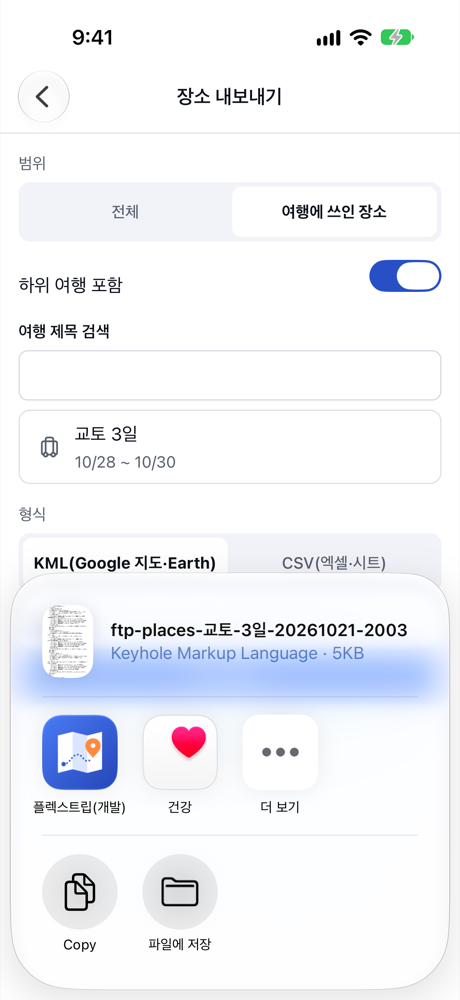
<p><strong>공유…</strong>를 누르면 공유 시트가 열립니다. 파일 앱(iCloud Drive)에 저장하거나 메일·메신저로 컴퓨터에 보냅니다. Google Drive나 Dropbox 계정을 연결했다면 <strong>…에 저장</strong>으로 바로 올릴 수도 있습니다.</p>

<figure class="shot">
  <img src="/assets/img/blog/p6-share.png" alt="iOS 공유 시트: ftp-places-교토-3일 KML 파일, 복사·파일에 저장" loading="lazy" width="390" height="848" /><figcaption>공유 시트로 파일 보내기</figcaption>
</figure>

<p>내보낸 KML에는 다음 내용이 들어갑니다.</p>

<ul>
  <li>일차마다 폴더가 하나씩 있고(예: “1일차 10/28”), 폴더 안에 방문 순서대로 장소가 들어 있습니다.</li>
  <li>장소마다 이름·주소·메모가 들어갑니다.</li>
  <li>예비 슬롯의 장소는 “예비 1” 같은 폴더로, 여행 출발·도착 장소는 “출발·도착” 폴더로 따로 들어갑니다.</li>
  <li>장소 사이의 이동 경로(선)는 들어가지 않습니다.</li>
</ul>

<h2 id="4-google-내-지도로-가져오기">4. Google 내 지도로 가져오기</h2>

<p>컴퓨터 브라우저에서 Google 내 지도를 열고 <strong>새 지도 만들기</strong>를 누른 뒤, 레이어의 <strong>가져오기</strong>에서 받은 KML 파일을 고릅니다. 여행 장소가 지도에 핀으로 표시되고, 핀을 누르면 이름·주소·메모를 볼 수 있습니다.</p>

<ul>
  <li>일차별 폴더가 레이어로 나뉘어 들어가지 않을 수 있습니다. 일차별로 나눠 보고 싶다면 레이어를 직접 나누고 핀을 옮기세요.</li>
  <li>내 지도에서 <strong>경로 추가</strong>를 쓰면 핀 사이의 길을 직접 그릴 수 있습니다.</li>
  <li>완성한 지도는 <strong>공유</strong>로 동행에게 링크를 보낼 수 있습니다.</li>
</ul>

<p>내 지도에서 고친 지도를 다시 KML로 내보내면, <a href="/blog/import-my-maps/">Google 내 지도로 모은 장소를 KML·KMZ로 가져와 여행 만들기</a>의 방법으로 앱에 다시 가져올 수도 있습니다.</p>

<h2 id="정리">정리</h2>

<ul>
  <li>여행 <strong>정보</strong> 탭의 <strong>장소 내보내기</strong>에서 <strong>여행에 쓰인 장소</strong>를 <strong>KML</strong>로 내보냅니다.</li>
  <li>파일에는 일차별 폴더와 방문 순서가 담기고, 이동 경로 선은 담기지 않습니다.</li>
  <li>Google 내 지도의 <strong>가져오기</strong>로 열어 큰 화면에서 보거나 동행과 나눌 수 있습니다.</li>
</ul>]]></content><author><name></name></author><summary type="html"><![CDATA[앱에서 계획한 여행의 장소를 일차별 KML로 내보내고, Google 내 지도로 가져와 컴퓨터에서 동선을 보거나 함께 가는 사람과 나누는 방법입니다.]]></summary><media:thumbnail xmlns:media="http://search.yahoo.com/mrss/" url="https://flex-trip.net/assets/img/blog/p6-export.png" /><media:content medium="image" url="https://flex-trip.net/assets/img/blog/p6-export.png" xmlns:media="http://search.yahoo.com/mrss/" /></entry><entry xml:lang="en"><title type="html">Export your trip as KML and view it in Google My Maps</title><link href="https://flex-trip.net/en/blog/export-to-my-maps/" rel="alternate" type="text/html" title="Export your trip as KML and view it in Google My Maps" /><published>2026-10-21T06:00:00+00:00</published><updated>2026-10-21T06:00:00+00:00</updated><id>https://flex-trip.net/en/blog/export-to-my-maps</id><content type="html" xml:base="https://flex-trip.net/en/blog/export-to-my-maps/"><![CDATA[<p>Sometimes you want to see your plan on a bigger screen, or show it on a map to a travel companion who doesn’t use the app. In Flex Trip Planner, export the places used in a trip as <strong>KML</strong>, and you can open them in Google My Maps or Google Earth.</p>

<p>Here we take the Kyoto trip made in the <a href="/en/blog/import-my-maps/">previous post</a>, polish it, and send it back to My Maps.</p>

<p>The app’s screens are in Korean. Below, button names are given in Korean with an English translation.</p>

<h2 id="1-export-places-from-the-trip-info">1. “Export places” from the trip info</h2>

<p>Open the trip and, on the <strong>정보</strong> (Info) tab, tap <strong>장소 내보내기</strong> (Export places).</p>

<figure class="shot">
  <img src="/assets/img/blog/p6-info.png" alt="Export places button on the Info tab of the Kyoto trip" loading="lazy" width="390" height="848" /><figcaption>Export places in the trip info</figcaption>
</figure>

<h2 id="2-choose-the-scope-and-format">2. Choose the scope and format</h2>

<p>On the <strong>장소 내보내기</strong> (Export places) screen, choose <strong>여행에 쓰인 장소</strong> (Places used in the trip) as the scope and <strong>KML(Google 지도·Earth)</strong> (KML for Google Maps and Earth) as the format.</p>

<figure class="shot">
  <img src="/assets/img/blog/p6-export.png" alt="Export places screen: scope places used in the trip, include sub-trips on, trip Kyoto 3 days, format KML, destination share" loading="lazy" width="390" height="848" /><figcaption>The trip's places as KML</figcaption>
</figure>

<ul>
  <li>With <strong>하위 여행 포함</strong> (Include sub-trips) on, the places in each city’s detailed plan (sub-trip) are included too.</li>
  <li>For a table, choose <strong>CSV(엑셀·시트)</strong> (CSV for Excel and Sheets).</li>
</ul>

<h2 id="3-send-the-file">3. Send the file</h2>

<p>Tap <strong>공유…</strong> (Share…) to open the share sheet. Save the file to the Files app (iCloud Drive), or send it to your computer by email or a messaging app. If you’ve connected Google Drive or Dropbox, you can also upload it directly with <strong>…에 저장</strong> (Save to …).</p>

<figure class="shot">
  <img src="/assets/img/blog/p6-share.png" alt="iOS share sheet for the ftp-places Kyoto KML file, with Copy and Save to Files" loading="lazy" width="390" height="848" /><figcaption>Sending the file from the share sheet</figcaption>
</figure>

<p>The exported KML contains:</p>

<ul>
  <li>One folder per day (for example “1일차 10/28”, Day 1 Oct 28), with places in visit order.</li>
  <li>Each place’s name, address and notes.</li>
  <li>Places in spare slots in folders like “예비 1” (Spare 1), and the trip’s departure and arrival places in a separate “출발·도착” (Departure and arrival) folder.</li>
  <li>No route lines between places.</li>
</ul>

<h2 id="4-import-it-into-google-my-maps">4. Import it into Google My Maps</h2>

<p>In a computer browser, open Google My Maps, tap <strong>Create a new map</strong>, and choose the KML file under <strong>Import</strong> in a layer. Your trip’s places appear as pins, and you can click a pin to see its name, address and notes.</p>

<ul>
  <li>The day folders may not come in as separate layers. To see days separately, split the layers yourself and move the pins.</li>
  <li>In My Maps, <strong>Add directions</strong> lets you draw the route between pins yourself.</li>
  <li>Use <strong>Share</strong> to send the finished map to your companions as a link.</li>
</ul>

<p>If you edit the map in My Maps and export it as KML again, you can bring it back into the app as shown in <a href="/en/blog/import-my-maps/">Make a trip from places you saved in Google My Maps</a>.</p>

<h2 id="summary">Summary</h2>

<ul>
  <li>Export <strong>여행에 쓰인 장소</strong> (Places used in the trip) as <strong>KML</strong> from <strong>장소 내보내기</strong> (Export places) on the trip’s <strong>정보</strong> (Info) tab.</li>
  <li>The file has a folder per day in visit order, but no route lines.</li>
  <li>Open it with <strong>Import</strong> in Google My Maps to view it on a big screen or share it with companions.</li>
</ul>]]></content><author><name></name></author><category term="en" /><summary type="html"><![CDATA[Export the places of a trip you planned in the app as a KML file with a folder per day, then open it in Google My Maps to see it on a bigger screen or share it with travel companions.]]></summary><media:thumbnail xmlns:media="http://search.yahoo.com/mrss/" url="https://flex-trip.net/assets/img/blog/p6-export.png" /><media:content medium="image" url="https://flex-trip.net/assets/img/blog/p6-export.png" xmlns:media="http://search.yahoo.com/mrss/" /></entry><entry xml:lang="ko"><title type="html">Google 내 지도로 모은 장소를 KML·KMZ로 가져와 여행 만들기</title><link href="https://flex-trip.net/blog/import-my-maps/" rel="alternate" type="text/html" title="Google 내 지도로 모은 장소를 KML·KMZ로 가져와 여행 만들기" /><published>2026-10-21T05:00:00+00:00</published><updated>2026-10-21T05:00:00+00:00</updated><id>https://flex-trip.net/blog/import-my-maps</id><content type="html" xml:base="https://flex-trip.net/blog/import-my-maps/"><![CDATA[<p>여행지를 조사할 때 컴퓨터에서 Google 내 지도(My Maps)에 가고 싶은 곳을 표시해 두는 분이 많습니다. 여행 계획 수립은 내 지도에서 내보낸 <strong>KML·KMZ 파일</strong>을 가져와 장소를 한꺼번에 등록하고, 날짜별 초안 여행까지 만들어 줍니다.</p>

<p>이 글에서는 교토 3일 여행을 예로 듭니다.</p>

<h2 id="1-google-내-지도에서-일차별로-장소-모으기">1. Google 내 지도에서 일차별로 장소 모으기</h2>

<p>컴퓨터 브라우저에서 Google 내 지도를 열고 새 지도를 만듭니다. 레이어 이름을 “1일차”, “2일차”(또는 “Day 1”, “Day 2”)처럼 일차로 붙이고 그날 갈 곳을 넣어 두면, 앱이 가져올 때 레이어마다 일차를 추정합니다.</p>

<ul>
  <li>1일차: 금각사, 료안지, 니조성</li>
  <li>2일차: 은각사, 기요미즈데라</li>
  <li>3일차: 후시미 이나리 신사, 아라시야마</li>
</ul>

<p>레이어 이름에 일차가 없어도 가져올 수 있습니다. 이때는 파일 순서대로 일차를 나누고, 미리보기에서 바꿀 수 있습니다.</p>

<h2 id="2-kml-또는-kmz로-내보내기">2. KML 또는 KMZ로 내보내기</h2>

<p>지도 이름 옆 메뉴(⋮)에서 <strong>KML/KMZ로 내보내기</strong>를 고르고 다운로드합니다.</p>

<ul>
  <li>지도 전체를 내보내면 레이어별 장소가 한 파일에 담깁니다.</li>
  <li>KML과 KMZ 둘 다 가져올 수 있습니다. KMZ는 KML을 압축한 파일입니다.</li>
  <li><strong>네트워크 링크로 최신 상태 유지</strong> 같은 옵션은 끄세요. 이 옵션을 켜면 장소 대신 링크만 담긴 파일이 만들어집니다.</li>
</ul>

<p>받은 파일은 iCloud Drive나 Google Drive에 저장하거나 메일·메신저로 휴대폰에 보냅니다. 휴대폰의 파일 앱이나 공유 메뉴에서 이 앱으로 바로 열 수도 있습니다.</p>

<h2 id="3-앱에서-파일로-여행-만들기">3. 앱에서 “파일로 여행 만들기”</h2>

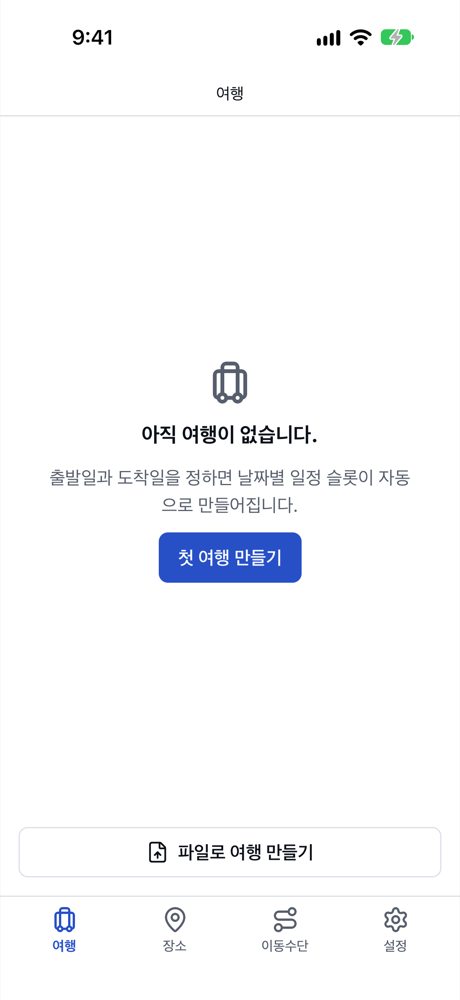
<p>여행 탭에서 <strong>파일로 여행 만들기</strong>를 누릅니다.</p>

<figure class="shot">
  <img src="/assets/img/blog/p5-trip-list.png" alt="여행 목록 화면의 새 여행, 파일로 여행 만들기 버튼" loading="lazy" width="390" height="848" /><figcaption>여행 목록의 파일로 여행 만들기</figcaption>
</figure>

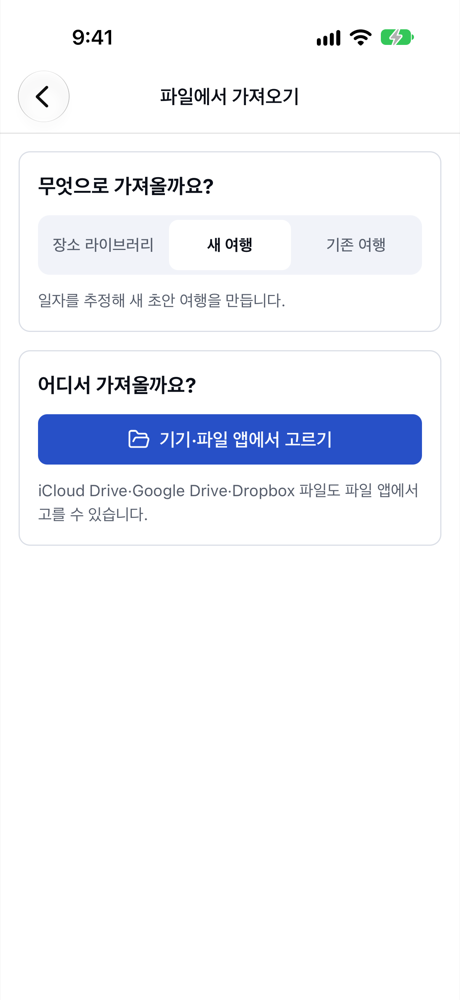
<p><strong>파일에서 가져오기</strong> 화면에서 <strong>무엇으로 가져올까요?</strong>는 <strong>새 여행</strong>으로 두고, <strong>어디서 가져올까요?</strong>의 <strong>기기·파일 앱에서 고르기</strong>를 눌러 내보낸 파일을 고릅니다. iCloud Drive·Google Drive·Dropbox에 저장한 파일도 파일 앱에서 고를 수 있습니다.</p>

<figure class="shot">
  <img src="/assets/img/blog/p5-import.png" alt="파일에서 가져오기 화면: 무엇으로 가져올까요(장소 라이브러리·새 여행·기존 여행 중 새 여행 선택), 어디서 가져올까요(기기·파일 앱에서 고르기)" loading="lazy" width="390" height="848" /><figcaption>파일에서 가져오기</figcaption>
</figure>

<h2 id="4-미리보기에서-일차-확인하기">4. 미리보기에서 일차 확인하기</h2>

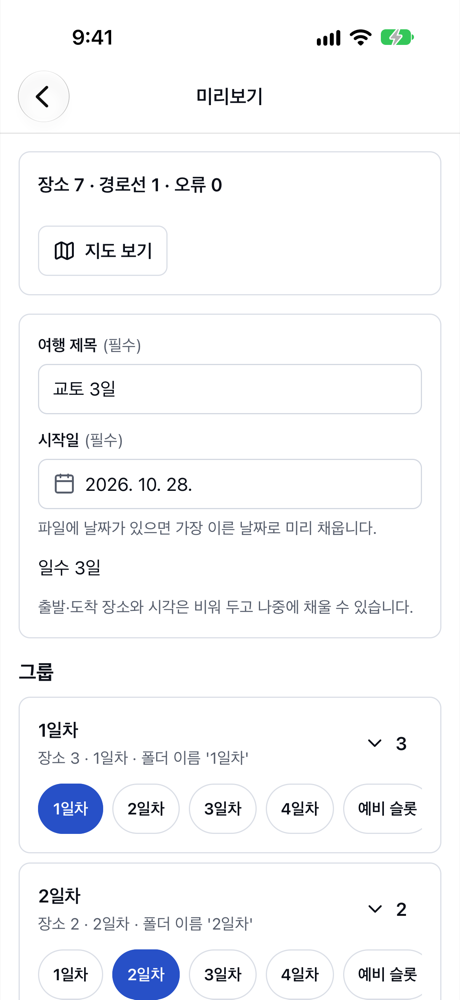
<p>파일을 고르면 미리보기가 열립니다. 장소·경로선 개수와 함께 레이어(그룹)마다 몇 일차에 들어갈지 보여 줍니다.</p>

<figure class="shot">
  <img src="/assets/img/blog/p5-preview.png" alt="미리보기: 장소 7 · 경로선 1 · 오류 0, 여행 제목 교토 3일, 시작일, 일수 3일, 그룹 1일차(폴더 이름 '1일차')·2일차가 각각 1·2일차로" loading="lazy" width="390" height="848" /><figcaption>가져오기 미리보기</figcaption>
</figure>

<ul>
  <li><strong>여행 제목</strong>과 <strong>시작일</strong>을 정합니다. 일수는 일차 수에 맞춰 정해집니다.</li>
  <li>그룹마다 <strong>N일차 / 예비 슬롯 / 장소만 / 제외</strong> 중에서 고를 수 있습니다.</li>
  <li>내 지도의 길찾기 선(경로선)이 있다면 <strong>경로선으로 이동수단 초안 만들기</strong>로 구간 이동수단 초안까지 만들 수 있습니다.</li>
  <li>주소만 있고 좌표가 없는 장소는 <strong>위치 확인</strong>에서, 이미 저장한 장소와 겹치는 장소는 <strong>중복 처리</strong>에서 정리합니다.</li>
</ul>

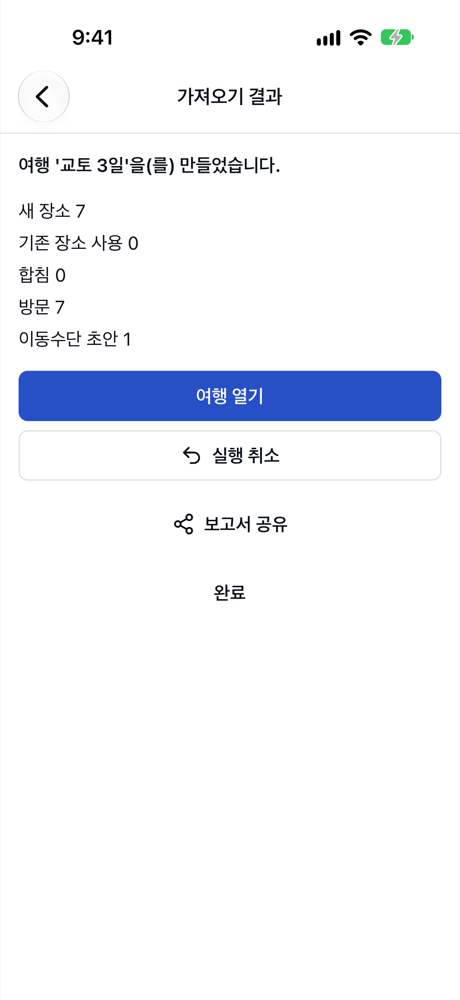
<p><strong>여행 만들기</strong>를 누르면 결과 화면이 열립니다.</p>

<figure class="shot">
  <img src="/assets/img/blog/p5-result.png" alt="가져오기 결과: 여행 '교토 3일'을(를) 만들었습니다, 새 장소 7, 방문 7, 이동수단 초안 1, 여행 열기·실행 취소·보고서 공유·완료" loading="lazy" width="390" height="848" /><figcaption>가져오기 결과</figcaption>
</figure>

<h2 id="5-만들어진-초안-여행-다듬기">5. 만들어진 초안 여행 다듬기</h2>

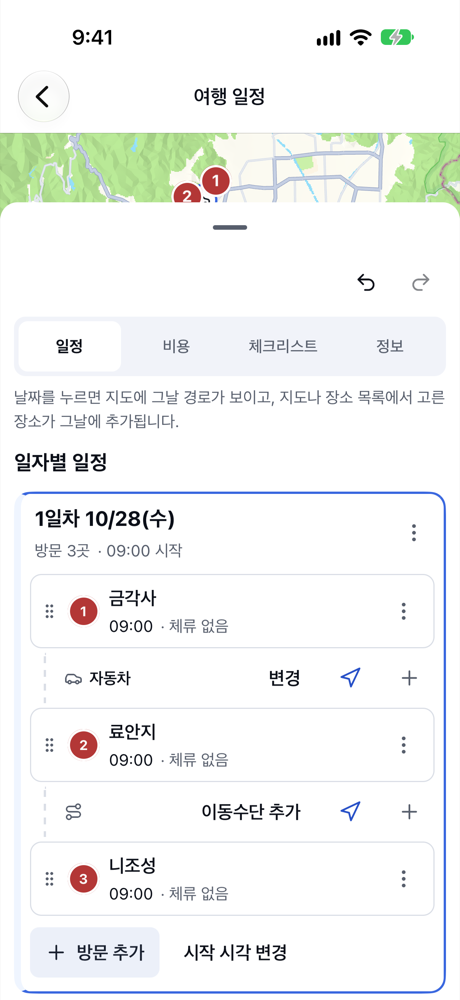
<p><strong>여행 열기</strong>를 누르면 일차별로 장소가 들어간 초안 여행이 열립니다. 내 지도의 운전 경로선은 금각사 → 료안지 구간의 <strong>자동차</strong> 이동수단 초안이 되었습니다. 이제 방문 순서와 체류 시간을 다듬고, 출발·도착 장소와 이동수단을 채워 일정을 완성합니다.</p>

<figure class="shot">
  <img src="/assets/img/blog/p5-trip.png" alt="교토 3일 초안 여행 1일차: 금각사, 자동차, 료안지, 니조성" loading="lazy" width="390" height="848" /><figcaption>가져온 장소로 만든 초안 여행</figcaption>
</figure>

<ul>
  <li>가져온 여행은 날짜별 일정(일별 일정)으로 만들어집니다.</li>
  <li>출발·도착 장소와 시각은 비어 있으니 여행 정보에서 채우세요.</li>
  <li>마음에 들지 않으면 결과 화면의 <strong>실행 취소</strong>로 가져오기 전 상태로 되돌릴 수 있습니다.</li>
</ul>

<h2 id="정리">정리</h2>

<ul>
  <li>Google 내 지도에서 레이어 이름을 “1일차”, “2일차”처럼 붙여 장소를 모으면 일차가 그대로 반영됩니다.</li>
  <li><strong>KML/KMZ로 내보내기</strong>로 받은 파일을 앱의 <strong>파일로 여행 만들기</strong>에서 가져옵니다.</li>
  <li>미리보기에서 일차·제목·시작일을 확인하면 날짜별 초안 여행이 바로 만들어집니다.</li>
</ul>]]></content><author><name></name></author><summary type="html"><![CDATA[Google 내 지도에서 일차별로 장소를 모아 KML이나 KMZ로 내보낸 뒤, 앱에서 가져와 날짜별 초안 여행을 바로 만드는 방법입니다.]]></summary><media:thumbnail xmlns:media="http://search.yahoo.com/mrss/" url="https://flex-trip.net/assets/img/blog/p5-preview.png" /><media:content medium="image" url="https://flex-trip.net/assets/img/blog/p5-preview.png" xmlns:media="http://search.yahoo.com/mrss/" /></entry><entry xml:lang="en"><title type="html">Make a trip from places you saved in Google My Maps (KML or KMZ)</title><link href="https://flex-trip.net/en/blog/import-my-maps/" rel="alternate" type="text/html" title="Make a trip from places you saved in Google My Maps (KML or KMZ)" /><published>2026-10-21T05:00:00+00:00</published><updated>2026-10-21T05:00:00+00:00</updated><id>https://flex-trip.net/en/blog/import-my-maps</id><content type="html" xml:base="https://flex-trip.net/en/blog/import-my-maps/"><![CDATA[<p>Many people research a trip on a computer and mark the places they want to see in Google My Maps. Flex Trip Planner can import the <strong>KML or KMZ file</strong> you export from My Maps, add all the places at once, and even create a draft trip with a day for each layer.</p>

<p>Our example is a 3-day trip to Kyoto.</p>

<p>The app’s screens are in Korean. Below, button names are given in Korean with an English translation.</p>

<h2 id="1-collect-places-by-day-in-google-my-maps">1. Collect places by day in Google My Maps</h2>

<p>Open Google My Maps in a computer browser and create a new map. Name the layers by day, such as “Day 1” and “Day 2” (or “1일차”, “2일차”), and add each day’s places. When you import, the app reads the day from each layer name.</p>

<ul>
  <li>Day 1: Kinkaku-ji, Ryoan-ji, Nijo Castle</li>
  <li>Day 2: Ginkaku-ji, Kiyomizu-dera</li>
  <li>Day 3: Fushimi Inari Shrine, Arashiyama</li>
</ul>

<p>Layers without a day in their names import too. The app then splits days by the order in the file, and you can change this in the preview.</p>

<h2 id="2-export-as-kml-or-kmz">2. Export as KML or KMZ</h2>

<p>From the menu (⋮) next to the map’s name, choose <strong>Export to KML/KMZ</strong> and download the file.</p>

<ul>
  <li>Export the entire map to get every layer’s places in one file.</li>
  <li>Both KML and KMZ can be imported. A KMZ file is a compressed KML.</li>
  <li>Turn off options like <strong>keep data up to date with network link</strong>. With it on, the file contains a link instead of your places.</li>
</ul>

<p>Save the file to iCloud Drive or Google Drive, or send it to your phone by email or a messaging app. You can also open it in this app straight from the Files app or the share menu on your phone.</p>

<h2 id="3-in-the-app-create-trip-from-file">3. In the app, “Create trip from file”</h2>

<p>On the Trips tab, tap <strong>파일로 여행 만들기</strong> (Create trip from file).</p>

<figure class="shot">
  <img src="/assets/img/blog/p5-trip-list.png" alt="Trip list screen with the New trip and Create trip from file buttons" loading="lazy" width="390" height="848" /><figcaption>Create trip from file on the trip list</figcaption>
</figure>

<p>On the <strong>파일에서 가져오기</strong> (Import from file) screen, leave <strong>무엇으로 가져올까요?</strong> (Import as) on <strong>새 여행</strong> (New trip), then under <strong>어디서 가져올까요?</strong> (Import from) tap <strong>기기·파일 앱에서 고르기</strong> (Choose from device or Files) and pick the exported file. Files saved in iCloud Drive, Google Drive or Dropbox can be picked in the Files app too.</p>

<figure class="shot">
  <img src="/assets/img/blog/p5-import.png" alt="Import from file screen: import as (place library, new trip or existing trip, with new trip selected) and import from (choose from device or Files)" loading="lazy" width="390" height="848" /><figcaption>Import from file</figcaption>
</figure>

<h2 id="4-check-the-days-in-the-preview">4. Check the days in the preview</h2>

<p>After you pick the file, a preview opens. It shows how many places and route lines were found, and which day each layer (group) goes to.</p>

<figure class="shot">
  <img src="/assets/img/blog/p5-preview.png" alt="Preview: 7 places, 1 route line, 0 errors, trip title Kyoto 3 days, start date, 3 days, groups for day 1 (folder name '1일차') and day 2 set to days 1 and 2" loading="lazy" width="390" height="848" /><figcaption>Import preview</figcaption>
</figure>

<ul>
  <li>Set the <strong>여행 제목</strong> (Trip title) and <strong>시작일</strong> (Start date). The number of days follows the number of day groups.</li>
  <li>For each group you can choose <strong>N일차</strong> (Day N), <strong>예비 슬롯</strong> (Spare slot), <strong>장소만</strong> (Places only) or <strong>제외</strong> (Skip).</li>
  <li>If your My Maps has driving or walking directions (route lines), <strong>경로선으로 이동수단 초안 만들기</strong> (Draft transport from route lines) also drafts transport for those legs.</li>
  <li>Places with an address but no coordinates are fixed in <strong>위치 확인</strong> (Check locations), and places that match ones you already saved in <strong>중복 처리</strong> (Duplicates).</li>
</ul>

<p>Tap <strong>여행 만들기</strong> (Create trip), and the result screen opens.</p>

<figure class="shot">
  <img src="/assets/img/blog/p5-result.png" alt="Import result: created trip 'Kyoto 3 days', 7 new places, 7 visits, 1 transport draft, with open trip, undo, share report and done" loading="lazy" width="390" height="848" /><figcaption>Import result</figcaption>
</figure>

<h2 id="5-polish-the-draft-trip">5. Polish the draft trip</h2>

<p>Tap <strong>여행 열기</strong> (Open trip) to see the draft trip with places sorted into days. The driving route line from My Maps became a <strong>자동차</strong> (Car) transport draft for Kinkaku-ji → Ryoan-ji. Now fine-tune the order of visits and time spent, and fill in departure and arrival places and transport to finish the plan.</p>

<figure class="shot">
  <img src="/assets/img/blog/p5-trip.png" alt="Day 1 of the Kyoto 3 days draft trip: Kinkaku-ji, car, Ryoan-ji, Nijo Castle" loading="lazy" width="390" height="848" /><figcaption>A draft trip made from imported places</figcaption>
</figure>

<ul>
  <li>Imported trips are created as daily schedules.</li>
  <li>Departure and arrival places and times start empty, so fill them in from the trip info.</li>
  <li>If you don’t like the result, <strong>실행 취소</strong> (Undo) on the result screen takes you back to before the import.</li>
</ul>

<h2 id="summary">Summary</h2>

<ul>
  <li>In Google My Maps, name layers by day (“Day 1”, “Day 2”) so the days carry over.</li>
  <li>Get the file with <strong>Export to KML/KMZ</strong> and bring it in with <strong>파일로 여행 만들기</strong> (Create trip from file).</li>
  <li>Check the days, title and start date in the preview, and a day-by-day draft trip is ready.</li>
</ul>]]></content><author><name></name></author><category term="en" /><summary type="html"><![CDATA[Collect places by day in Google My Maps, export them as KML or KMZ, and import the file to create a day-by-day draft trip in one go.]]></summary><media:thumbnail xmlns:media="http://search.yahoo.com/mrss/" url="https://flex-trip.net/assets/img/blog/p5-preview.png" /><media:content medium="image" url="https://flex-trip.net/assets/img/blog/p5-preview.png" xmlns:media="http://search.yahoo.com/mrss/" /></entry><entry xml:lang="ko"><title type="html">여러 도시 여행 — 전체 동선에서 도시별 세부 계획으로</title><link href="https://flex-trip.net/blog/multi-city-subtrips/" rel="alternate" type="text/html" title="여러 도시 여행 — 전체 동선에서 도시별 세부 계획으로" /><published>2026-10-21T04:00:00+00:00</published><updated>2026-10-21T04:00:00+00:00</updated><id>https://flex-trip.net/blog/multi-city-subtrips</id><content type="html" xml:base="https://flex-trip.net/blog/multi-city-subtrips/"><![CDATA[<p>여러 도시를 도는 여행은 처음부터 날짜별로 짜기가 어렵습니다. 어느 도시에 며칠 머물지부터 정하고, 도시별 일정은 나중에 채우는 편이 훨씬 수월합니다. 여행 계획 수립에서는 <strong>전체 동선</strong> 여행으로 큰 흐름을 잡고, 도시마다 <strong>세부 계획</strong>(하위 여행)을 만들어 그 안에서 날짜별 일정을 짭니다.</p>

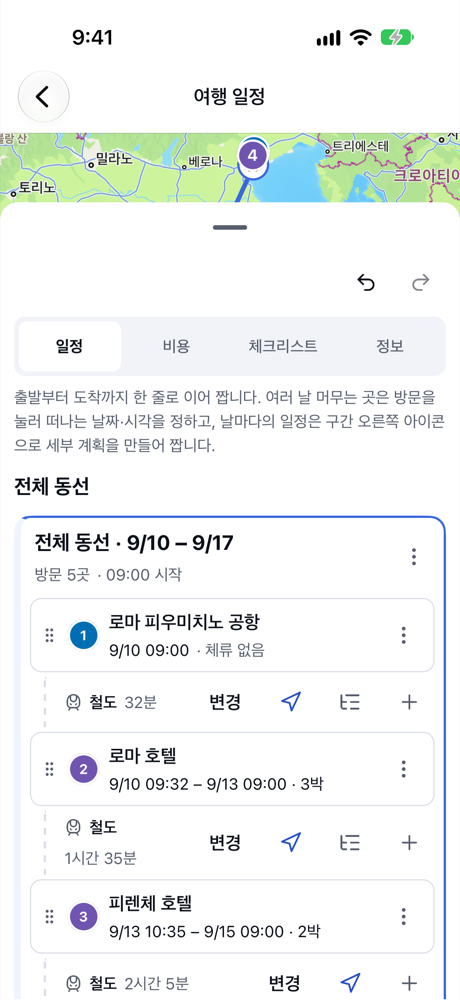
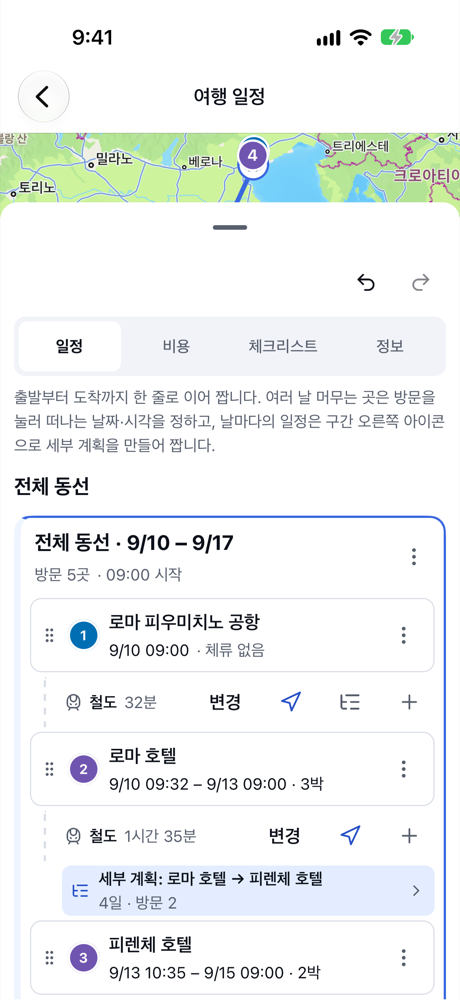
<p>이 글에서는 로마 → 피렌체 → 베네치아로 이어지는 이탈리아 8일 여행을 예로 듭니다.</p>

<h2 id="1-전체-동선으로-도시-순서-잡기">1. 전체 동선으로 도시 순서 잡기</h2>

<p>새 여행을 만들 때 계획 방식을 <strong>전체 동선</strong>으로 고르고, 도시마다 숙소를 방문으로 넣습니다. 숙소 방문의 <strong>떠나는 날짜·시각</strong>을 정하면 도시마다 며칠 머무는지가 정해집니다. 도시 사이 구간에는 기차 같은 이동수단을 넣어 둡니다.</p>

<figure class="shot">
  <img src="/assets/img/blog/p4-outline.png" alt="이탈리아 8일 전체 동선 카드: 로마 공항, 로마 호텔 3박, 기차, 피렌체 호텔 2박, 기차, 베네치아 호텔 2박, 베네치아 공항" loading="lazy" width="390" height="848" /><figcaption>도시 순서와 머무는 기간</figcaption>
</figure>

<p>전체 동선을 짜는 방법은 <a href="/blog/simple-route/">동선만 빠르게 — 전체 동선으로 짜는 간단한 여행</a>에서 자세히 볼 수 있습니다.</p>

<h2 id="2-도시마다-세부-계획-만들기">2. 도시마다 세부 계획 만들기</h2>

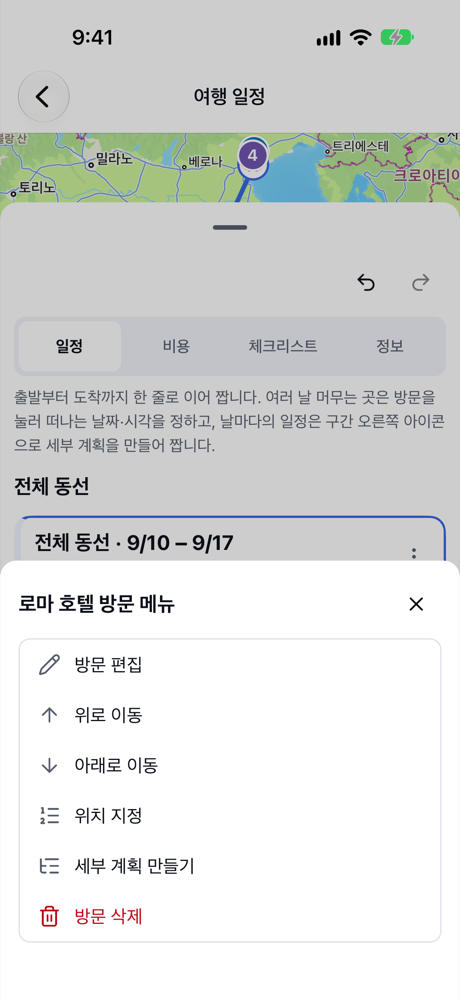
<p>세부 계획을 만들 도시의 숙소(예: 로마 호텔) 방문 메뉴에서 <strong>세부 계획 만들기</strong>를 누릅니다. 구간 줄 오른쪽의 세부 계획 아이콘을 눌러도 됩니다.</p>

<figure class="shot">
  <img src="/assets/img/blog/p4-create.png" alt="로마 호텔 방문 메뉴: 방문 편집, 위로 이동, 아래로 이동, 위치 지정, 세부 계획 만들기, 방문 삭제" loading="lazy" width="390" height="848" /><figcaption>방문 메뉴의 세부 계획 만들기</figcaption>
</figure>

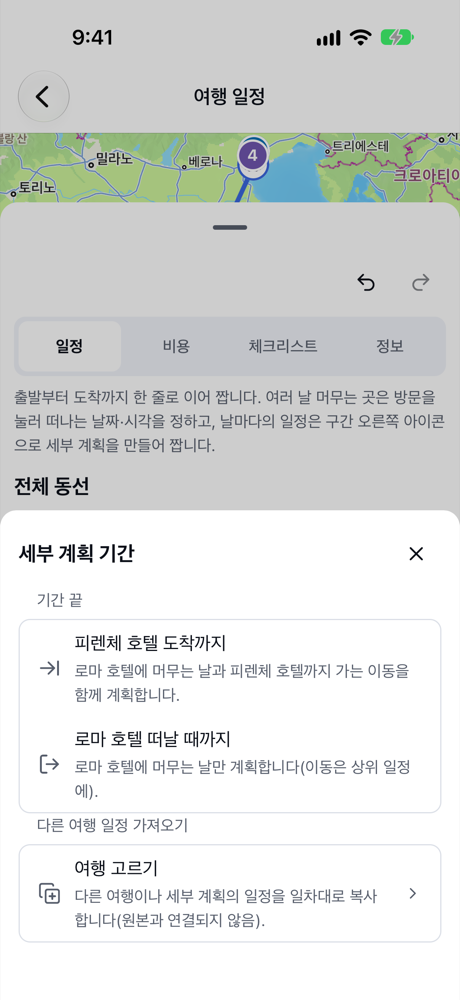
<p><strong>세부 계획 기간</strong> 창에서 기간 끝을 고릅니다.</p>

<figure class="shot">
  <img src="/assets/img/blog/p4-period.png" alt="세부 계획 기간: 피렌체 호텔 도착까지, 로마 호텔 떠날 때까지" loading="lazy" width="390" height="848" /><figcaption>세부 계획 기간 고르기</figcaption>
</figure>

<ul>
  <li><strong>피렌체 호텔 도착까지</strong>: 로마에 머무는 날과 피렌체로 가는 이동을 함께 계획합니다.</li>
  <li><strong>로마 호텔 떠날 때까지</strong>: 로마에 머무는 날만 계획하고, 이동은 전체 동선에 둡니다.</li>
  <li>다른 여행에 이미 짜 둔 일정이 있다면 <strong>다른 여행 일정 가져오기</strong>로 일차대로 복사해 시작할 수도 있습니다.</li>
</ul>

<h2 id="3-세부-계획에서-날짜별-일정-짜기">3. 세부 계획에서 날짜별 일정 짜기</h2>

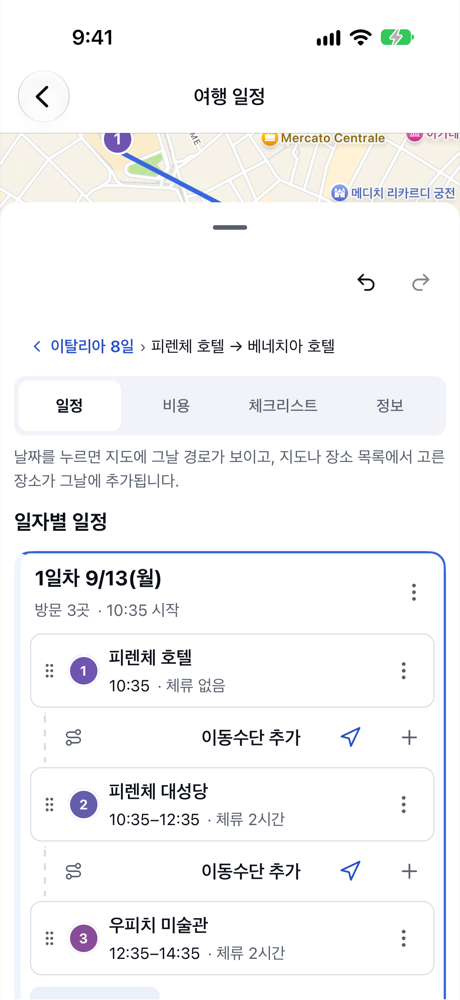
<p>세부 계획은 기간에 맞춰 날짜별 카드가 있는 일별 여행으로 열립니다. 첫 방문은 그 도시의 숙소, 마지막 방문은 다음 도시로 이어지고, 그 사이에 날마다 가고 싶은 곳을 넣습니다. 맨 위의 경로(예: “이탈리아 8일 › 피렌체 호텔 → 베네치아 호텔”)를 누르면 전체 동선 여행으로 돌아갑니다.</p>

<figure class="shot">
  <img src="/assets/img/blog/p4-subtrip.png" alt="피렌체 세부 계획: 맨 위에 '이탈리아 8일 › 피렌체 호텔 → 베네치아 호텔', 1일차 9/13 피렌체 호텔, 피렌체 대성당 10:35–12:35, 우피치 미술관 12:35–14:35" loading="lazy" width="390" height="848" /><figcaption>피렌체 세부 계획의 날짜별 일정</figcaption>
</figure>

<p>세부 계획의 기간은 전체 동선을 따릅니다. 전체 동선에서 숙소의 떠나는 시각을 바꾸면 세부 계획의 기간도 함께 바뀝니다.</p>

<h2 id="4-전체-동선에서-한눈에-보기">4. 전체 동선에서 한눈에 보기</h2>

<p>전체 동선 여행으로 돌아오면 구간 줄 아래에 <strong>세부 계획: …</strong>과 기간·방문 수가 표시됩니다. 누르면 그 도시의 세부 계획이 열립니다. 도시마다 같은 방법으로 세부 계획을 만들면 큰 흐름과 도시별 일정을 함께 관리할 수 있습니다.</p>

<figure class="shot">
  <img src="/assets/img/blog/p4-links.png" alt="전체 동선 카드: 로마 피우미치노 공항, 철도 32분, 로마 호텔 3박, 철도 1시간 35분 아래에 '세부 계획: 로마 호텔 → 피렌체 호텔 · 4일 · 방문 2'" loading="lazy" width="390" height="848" /><figcaption>구간마다 연결된 세부 계획</figcaption>
</figure>

<h2 id="정리">정리</h2>

<ul>
  <li>여러 도시 여행은 <strong>전체 동선</strong>으로 도시 순서와 머무는 기간부터 잡습니다.</li>
  <li>숙소 방문 메뉴(또는 구간 줄)의 <strong>세부 계획 만들기</strong>로 도시마다 날짜별 일정을 따로 짭니다.</li>
  <li>세부 계획의 기간은 전체 동선을 따라가고, 전체 동선에서 링크로 바로 열 수 있습니다.</li>
</ul>]]></content><author><name></name></author><summary type="html"><![CDATA[여러 도시를 거치는 여행을 먼저 전체 동선으로 간단히 잡고, 도시마다 세부 계획을 만들어 날짜별 일정을 자세히 짜는 방법입니다.]]></summary><media:thumbnail xmlns:media="http://search.yahoo.com/mrss/" url="https://flex-trip.net/assets/img/blog/p4-outline.png" /><media:content medium="image" url="https://flex-trip.net/assets/img/blog/p4-outline.png" xmlns:media="http://search.yahoo.com/mrss/" /></entry><entry xml:lang="en"><title type="html">Multi-city trips — from a full route to a detailed plan per city</title><link href="https://flex-trip.net/en/blog/multi-city-subtrips/" rel="alternate" type="text/html" title="Multi-city trips — from a full route to a detailed plan per city" /><published>2026-10-21T04:00:00+00:00</published><updated>2026-10-21T04:00:00+00:00</updated><id>https://flex-trip.net/en/blog/multi-city-subtrips</id><content type="html" xml:base="https://flex-trip.net/en/blog/multi-city-subtrips/"><![CDATA[<p>A trip through several cities is hard to plan day by day from the start. It’s much easier to decide first how many days you’ll spend in each city, then fill in each city later. In Flex Trip Planner, you set the overall flow with a <strong>full route</strong> trip and create a <strong>detailed plan</strong> (a sub-trip) for each city, where you plan day by day.</p>

<p>Our example is an 8-day trip through Italy: Rome → Florence → Venice.</p>

<p>The app’s screens are in Korean. Below, button names are given in Korean with an English translation.</p>

<h2 id="1-set-the-order-of-cities-with-a-full-route">1. Set the order of cities with a full route</h2>

<p>When you create the trip, choose <strong>전체 동선</strong> (Full route) as the plan type, and add each city’s hotel as a visit. Setting <strong>떠나는 날짜·시각</strong> (Leave date and time) on each hotel decides how many days you stay in each city. Add transport such as trains to the legs between cities.</p>

<figure class="shot">
  <img src="/assets/img/blog/p4-outline.png" alt="Full route card for Italy, 8 days: Rome airport, Rome hotel 3 nights, train, Florence hotel 2 nights, train, Venice hotel 2 nights, Venice airport" loading="lazy" width="390" height="848" /><figcaption>City order and length of each stay</figcaption>
</figure>

<p>For more on full route trips, see <a href="/en/blog/simple-route/">Just the route — a simple trip planned as one full route</a>.</p>

<h2 id="2-create-a-detailed-plan-for-each-city">2. Create a detailed plan for each city</h2>

<p>In the menu of the city’s hotel visit (say, Rome hotel), tap <strong>세부 계획 만들기</strong> (Create detailed plan). You can also tap the detailed plan icon at the right of the leg row.</p>

<figure class="shot">
  <img src="/assets/img/blog/p4-create.png" alt="Rome hotel visit menu: edit visit, move up, move down, set position, create detailed plan, delete visit" loading="lazy" width="390" height="848" /><figcaption>Create detailed plan in the visit menu</figcaption>
</figure>

<p>In the <strong>세부 계획 기간</strong> (Detailed plan period) window, choose where the period ends.</p>

<figure class="shot">
  <img src="/assets/img/blog/p4-period.png" alt="Detailed plan period: until arriving at Florence hotel, or until leaving Rome hotel" loading="lazy" width="390" height="848" /><figcaption>Choosing the detailed plan's period</figcaption>
</figure>

<ul>
  <li><strong>피렌체 호텔 도착까지</strong> (Until arriving at Florence hotel) plans your days in Rome together with the trip to Florence.</li>
  <li><strong>로마 호텔 떠날 때까지</strong> (Until leaving Rome hotel) plans only your days in Rome, and leaves the trip to Florence in the full route.</li>
  <li>If you already planned these days in another trip, <strong>다른 여행 일정 가져오기</strong> (Copy from another trip) copies that schedule day by day as a starting point.</li>
</ul>

<h2 id="3-plan-each-day-inside-the-detailed-plan">3. Plan each day inside the detailed plan</h2>

<p>A detailed plan opens as a daily trip with a card for each day in its period. It starts at that city’s hotel and ends by heading to the next city, and you add the places you want to see each day. Tap the path at the top (for example “이탈리아 8일 › 피렌체 호텔 → 베네치아 호텔”) to go back to the full route trip.</p>

<figure class="shot">
  <img src="/assets/img/blog/p4-subtrip.png" alt="Florence detailed plan: 'Italy 8 days › Florence hotel → Venice hotel' at the top, day 1 (Sep 13) Florence hotel, Florence Cathedral 10:35–12:35, Uffizi Gallery 12:35–14:35" loading="lazy" width="390" height="848" /><figcaption>Day-by-day plan inside the Florence detailed plan</figcaption>
</figure>

<p>A detailed plan’s period follows the full route. If you change when you leave a hotel in the full route, the detailed plan’s period changes with it.</p>

<h2 id="4-see-it-all-from-the-full-route">4. See it all from the full route</h2>

<p>Back on the full route trip, the leg row shows <strong>세부 계획: …</strong> (Detailed plan: …) below it, with its length and number of visits. Tap it to open that city’s plan. Do the same for each city, and you can manage both the big picture and each city’s days.</p>

<figure class="shot">
  <img src="/assets/img/blog/p4-links.png" alt="Full route card: Rome Fiumicino Airport, train 32 min, Rome hotel 3 nights, train 1 h 35 min, then 'Detailed plan: Rome hotel → Florence hotel · 4 days · 2 visits'" loading="lazy" width="390" height="848" /><figcaption>Detailed plans linked to each leg</figcaption>
</figure>

<h2 id="summary">Summary</h2>

<ul>
  <li>For a multi-city trip, start with a <strong>full route</strong> to set the order of cities and how long you stay.</li>
  <li>Use <strong>세부 계획 만들기</strong> (Create detailed plan) in a hotel visit’s menu (or on the leg row) to plan each city day by day.</li>
  <li>Each detailed plan’s period follows the full route, and you open it straight from the link there.</li>
</ul>]]></content><author><name></name></author><category term="en" /><summary type="html"><![CDATA[Sketch a trip through several cities as one full route, then make a detailed plan for each city with its own day-by-day schedule.]]></summary><media:thumbnail xmlns:media="http://search.yahoo.com/mrss/" url="https://flex-trip.net/assets/img/blog/p4-outline.png" /><media:content medium="image" url="https://flex-trip.net/assets/img/blog/p4-outline.png" xmlns:media="http://search.yahoo.com/mrss/" /></entry><entry xml:lang="ko"><title type="html">비 오는 날 대비 — 예비 슬롯으로 하루 일정을 통째로 바꾸기</title><link href="https://flex-trip.net/blog/rainy-day-swap/" rel="alternate" type="text/html" title="비 오는 날 대비 — 예비 슬롯으로 하루 일정을 통째로 바꾸기" /><published>2026-10-21T03:00:00+00:00</published><updated>2026-10-21T03:00:00+00:00</updated><id>https://flex-trip.net/blog/rainy-day-swap</id><content type="html" xml:base="https://flex-trip.net/blog/rainy-day-swap/"><![CDATA[<p>여행지의 날씨는 출발 전에 알 수 없습니다. 바깥 일정이 많은 날이라면 비가 올 때 갈 곳을 미리 정해 두는 것이 좋습니다. 여행 계획 수립의 <strong>예비 슬롯</strong>에 대체 일정을 만들어 두면, 당일 아침 날씨를 보고 그날 일정을 통째로 바꿀 수 있습니다.</p>

<p>이 글에서는 제주 3일 여행을 예로 듭니다. 2일차는 성산일출봉과 우도, 3일차는 한라산 영실 코스처럼 날씨에 따라 갈 수 없는 일정입니다.</p>

<h2 id="1-날짜별-일정-짜기">1. 날짜별 일정 짜기</h2>

<p>여행을 만들 때 계획 방식을 <strong>일별 일정</strong>으로 고르면 날짜마다 일정 카드가 생깁니다. 날마다 방문을 넣어 일정을 짭니다.</p>

<h2 id="2-예비-슬롯에-비-오는-날-일정-만들기">2. 예비 슬롯에 비 오는 날 일정 만들기</h2>

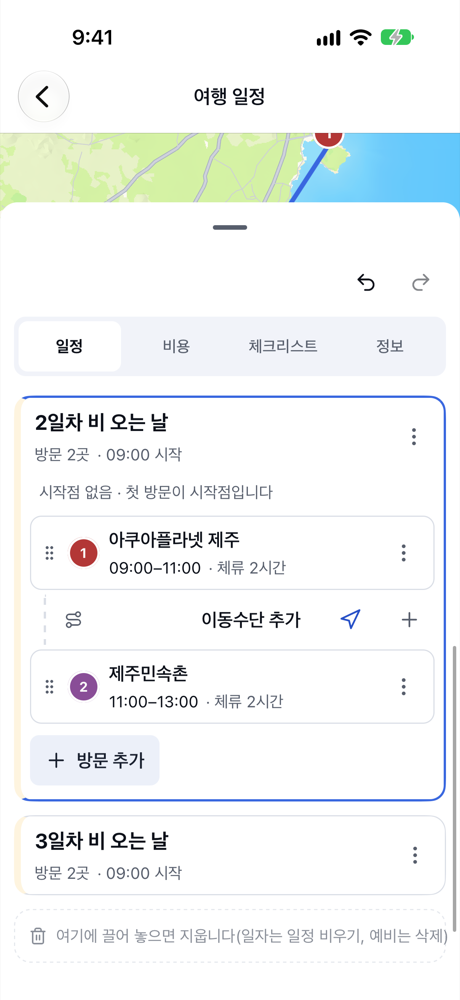
<p>일정 탭 아래의 <strong>예비 슬롯 추가</strong>를 누르면 “예비 1” 같은 이름의 빈 카드가 생깁니다. 카드 메뉴의 <strong>이름 변경</strong>으로 “2일차 비 오는 날”처럼 언제 쓸 일정인지 알아보기 쉬운 이름을 붙이고, 실내 일정을 넣어 둡니다.</p>

<figure class="shot">
  <img src="/assets/img/blog/p3-spares.png" alt="예비 슬롯 '2일차 비 오는 날'을 펼친 모습: 아쿠아플라넷 제주 09:00–11:00, 제주민속촌 11:00–13:00, 아래에 '3일차 비 오는 날'" loading="lazy" width="390" height="848" /><figcaption>날짜별 비 오는 날 일정을 예비 슬롯에</figcaption>
</figure>

<ul>
  <li>예비 슬롯에는 날짜가 없습니다. 이름으로 어느 날에 쓸 일정인지 구분해 두세요.</li>
  <li>예비 슬롯의 비용은 여행 합계에 들어가지 않습니다.</li>
</ul>

<h2 id="3-당일-아침-그날-일정을-예비-슬롯으로-대체하기">3. 당일 아침, 그날 일정을 예비 슬롯으로 대체하기</h2>

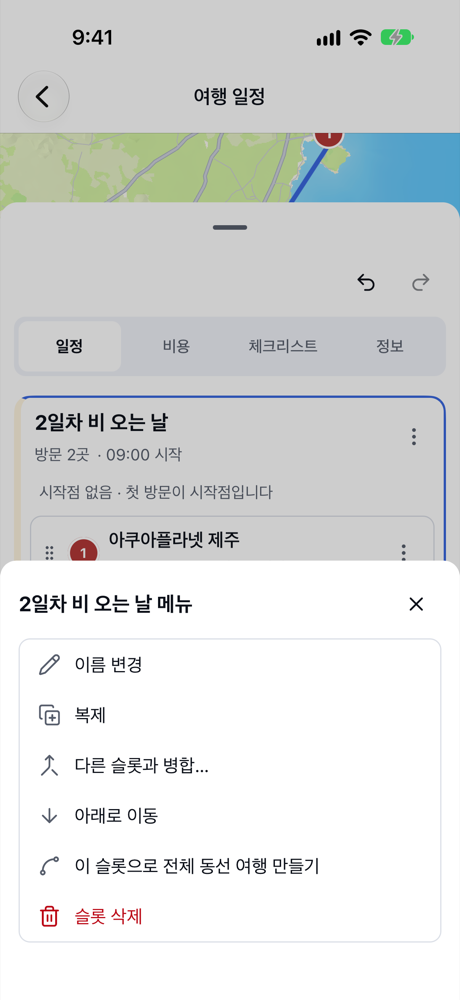
<p>2일차 아침에 비가 온다면 “2일차 비 오는 날” 카드의 메뉴에서 <strong>다른 슬롯과 병합…</strong>을 누릅니다.</p>

<figure class="shot">
  <img src="/assets/img/blog/p3-merge-menu.png" alt="2일차 비 오는 날 메뉴: 이름 변경, 복제, 다른 슬롯과 병합…, 아래로 이동, 이 슬롯으로 전체 동선 여행 만들기, 슬롯 삭제" loading="lazy" width="390" height="848" /><figcaption>예비 슬롯 메뉴</figcaption>
</figure>

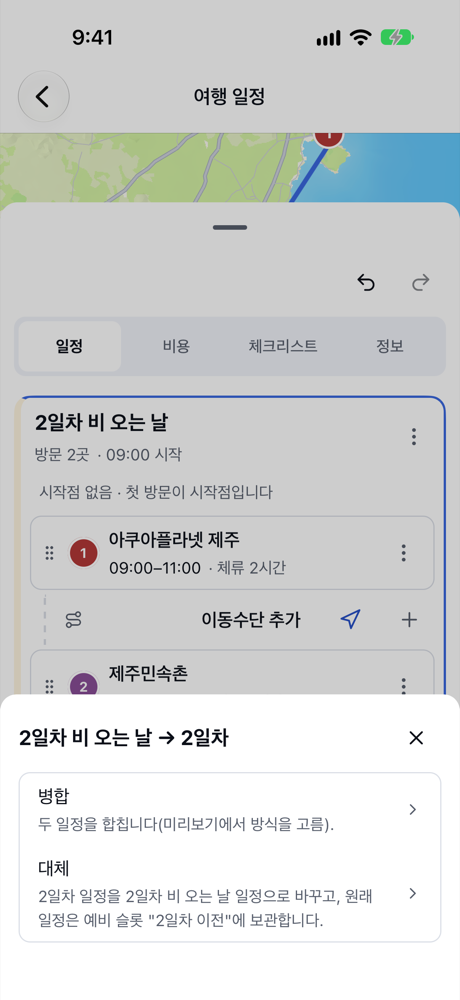
<p>바꿀 날짜로 <strong>2일차</strong>를 고르면 <strong>병합</strong>과 <strong>대체</strong> 중 하나를 고르는 창이 열립니다. 하루 일정을 통째로 바꾸려면 <strong>대체</strong>를 고릅니다.</p>

<figure class="shot">
  <img src="/assets/img/blog/p3-choice.png" alt="'2일차 비 오는 날 → 2일차' 선택 창: 병합(두 일정을 합칩니다), 대체(2일차 일정을 바꾸고 원래 일정은 예비 슬롯에 보관)" loading="lazy" width="390" height="848" /><figcaption>병합 / 대체 고르기</figcaption>
</figure>

<p>확인 화면에서 무엇이 어떻게 바뀌는지 미리 보여 줍니다.</p>

<figure class="shot">
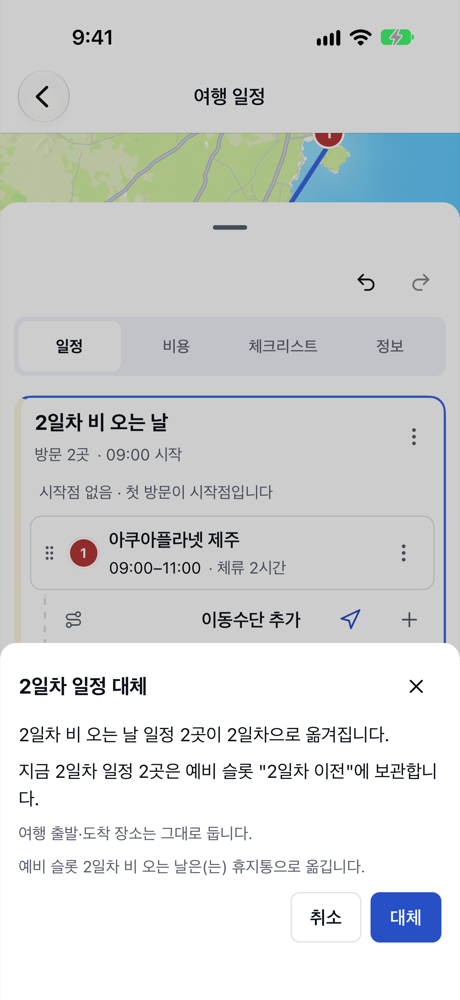
  <img src="/assets/img/blog/p3-replace.png" alt="2일차 일정 대체: 2일차 비 오는 날 일정 2곳이 2일차로 옮겨지고, 지금 2일차 일정 2곳은 예비 슬롯 '2일차 이전'에 보관, 여행 출발·도착 장소는 그대로, 예비 슬롯은 휴지통으로" loading="lazy" width="390" height="848" /><figcaption>대체하기 전 확인</figcaption>
</figure>

<ul>
  <li>예비 슬롯의 방문이 2일차로 옮겨집니다.</li>
  <li>원래 2일차 일정은 사라지지 않고 예비 슬롯 <strong>“2일차 이전”</strong>에 보관됩니다. 날씨가 다시 좋아지면 같은 방법으로 되돌릴 수 있습니다.</li>
  <li>여행 출발·도착 장소는 그대로입니다.</li>
  <li>다 쓴 예비 슬롯은 휴지통으로 옮겨집니다.</li>
</ul>

<p><strong>대체</strong>를 누르면 2일차가 실내 일정으로 바뀝니다. 바로 되돌리고 싶다면 도구 막대의 <strong>실행 취소</strong>를 누르세요.</p>

<figure class="shot">
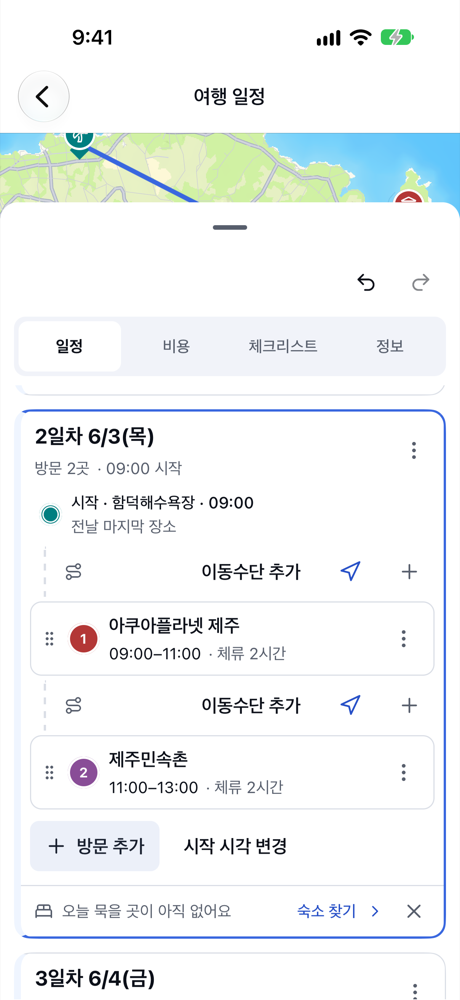
  <img src="/assets/img/blog/p3-done.png" alt="대체 후 2일차 카드: 전날 마지막 장소 함덕해수욕장에서 시작, 아쿠아플라넷 제주, 제주민속촌" loading="lazy" width="390" height="848" /><figcaption>대체한 뒤의 일정</figcaption>
</figure>

<h2 id="정리">정리</h2>

<ul>
  <li>바깥 일정이 많은 날은 <strong>예비 슬롯</strong>에 비 오는 날 일정을 미리 만들어 두고, 이름으로 날짜를 표시합니다.</li>
  <li>당일에는 예비 슬롯 메뉴의 <strong>다른 슬롯과 병합…</strong> → 날짜 선택 → <strong>대체</strong>로 그날 일정을 한 번에 바꿉니다.</li>
  <li>원래 일정은 “○일차 이전” 예비 슬롯에 남으니 언제든 되돌릴 수 있습니다.</li>
</ul>]]></content><author><name></name></author><summary type="html"><![CDATA[날짜별 일정을 짜면서 비 오는 날에 쓸 대체 일정을 예비 슬롯에 미리 만들어 두고, 당일 날씨에 맞춰 그날 일정을 한 번에 바꾸는 방법입니다.]]></summary><media:thumbnail xmlns:media="http://search.yahoo.com/mrss/" url="https://flex-trip.net/assets/img/blog/p3-replace.png" /><media:content medium="image" url="https://flex-trip.net/assets/img/blog/p3-replace.png" xmlns:media="http://search.yahoo.com/mrss/" /></entry><entry xml:lang="en"><title type="html">Ready for rain — swap a whole day with a spare slot</title><link href="https://flex-trip.net/en/blog/rainy-day-swap/" rel="alternate" type="text/html" title="Ready for rain — swap a whole day with a spare slot" /><published>2026-10-21T03:00:00+00:00</published><updated>2026-10-21T03:00:00+00:00</updated><id>https://flex-trip.net/en/blog/rainy-day-swap</id><content type="html" xml:base="https://flex-trip.net/en/blog/rainy-day-swap/"><![CDATA[<p>You can’t know the weather at your destination before you leave. If a day is mostly outdoors, it helps to decide in advance where to go if it rains. In Flex Trip Planner, you can prepare a backup plan in a <strong>spare slot</strong> and, after checking the weather that morning, replace that day’s plan in one step.</p>

<p>Our example is a 3-day trip to Jeju Island. Day 2 is Seongsan Ilchulbong and Udo Island, and Day 3 is the Yeongsil trail on Hallasan — plans that depend on the weather.</p>

<p>The app’s screens are in Korean. Below, button names are given in Korean with an English translation.</p>

<h2 id="1-plan-day-by-day">1. Plan day by day</h2>

<p>When you create the trip, choose <strong>일별 일정</strong> (Daily schedule) as the plan type, and each day gets its own card. Add visits to each day.</p>

<h2 id="2-make-a-rainy-day-plan-in-a-spare-slot">2. Make a rainy-day plan in a spare slot</h2>

<p>At the bottom of the schedule tab, tap <strong>예비 슬롯 추가</strong> (Add spare slot) to get an empty card named like “예비 1” (Spare 1). Use <strong>이름 변경</strong> (Rename) in the card’s menu to give it a name that says when it’s for, such as “2일차 비 오는 날” (Day 2, rainy day), and add indoor visits.</p>

<figure class="shot">
  <img src="/assets/img/blog/p3-spares.png" alt="Spare slot 'Day 2 rainy day' opened: Aqua Planet Jeju 09:00–11:00, Jeju Folk Village 11:00–13:00, with 'Day 3 rainy day' below" loading="lazy" width="390" height="848" /><figcaption>A rainy-day plan per day, kept in spare slots</figcaption>
</figure>

<ul>
  <li>Spare slots have no date. Use the name to show which day each one is for.</li>
  <li>Spare slot costs are not counted in the trip total.</li>
</ul>

<h2 id="3-on-the-morning-replace-the-day-with-the-spare-slot">3. On the morning, replace the day with the spare slot</h2>

<p>If it’s raining on the morning of Day 2, open the menu of the “2일차 비 오는 날” card and tap <strong>다른 슬롯과 병합…</strong> (Merge with another slot…).</p>

<figure class="shot">
  <img src="/assets/img/blog/p3-merge-menu.png" alt="Menu for Day 2 rainy day: rename, duplicate, merge with another slot, move down, make a full route trip from this slot, delete slot" loading="lazy" width="390" height="848" /><figcaption>Spare slot menu</figcaption>
</figure>

<p>Choose <strong>2일차</strong> (Day 2) as the day to change, and you’re asked to pick <strong>병합</strong> (Merge) or <strong>대체</strong> (Replace). To swap the whole day, choose <strong>대체</strong> (Replace).</p>

<figure class="shot">
  <img src="/assets/img/blog/p3-choice.png" alt="'Day 2 rainy day → Day 2' choice: merge (combine both plans) or replace (swap Day 2's plan and keep the original in a spare slot)" loading="lazy" width="390" height="848" /><figcaption>Choosing merge or replace</figcaption>
</figure>

<p>A confirmation screen shows exactly what will change.</p>

<figure class="shot">
  <img src="/assets/img/blog/p3-replace.png" alt="Replace Day 2: 2 places from Day 2 rainy day move to Day 2, the current 2 places on Day 2 are kept in spare slot 'Day 2 before', departure and arrival places stay, and the spare slot goes to the trash" loading="lazy" width="390" height="848" /><figcaption>Checking before you replace</figcaption>
</figure>

<ul>
  <li>The spare slot’s visits move to Day 2.</li>
  <li>The original Day 2 plan isn’t lost. It’s kept in a spare slot named <strong>“2일차 이전”</strong> (Day 2 before), so you can switch back the same way if the weather clears.</li>
  <li>The trip’s departure and arrival places stay where they are.</li>
  <li>The used spare slot goes to the trash.</li>
</ul>

<p>Tap <strong>대체</strong> (Replace), and Day 2 becomes the indoor plan. To undo right away, tap <strong>실행 취소</strong> (Undo) in the toolbar.</p>

<figure class="shot">
  <img src="/assets/img/blog/p3-done.png" alt="Day 2 card after replacing: starts from the previous day's last place, Hamdeok Beach, then Aqua Planet Jeju and Jeju Folk Village" loading="lazy" width="390" height="848" /><figcaption>The schedule after replacing</figcaption>
</figure>

<h2 id="summary">Summary</h2>

<ul>
  <li>For days that are mostly outdoors, prepare a rainy-day plan in a <strong>spare slot</strong> and name it after the day.</li>
  <li>On the day, go to the spare slot’s menu → <strong>다른 슬롯과 병합…</strong> (Merge with another slot…) → pick the day → <strong>대체</strong> (Replace) to swap the whole day.</li>
  <li>The original plan stays in a “Day N before” spare slot, so you can always switch back.</li>
</ul>]]></content><author><name></name></author><category term="en" /><summary type="html"><![CDATA[While planning day by day, prepare a rainy-day plan in a spare slot, then replace that day's plan in one step when you see the weather.]]></summary><media:thumbnail xmlns:media="http://search.yahoo.com/mrss/" url="https://flex-trip.net/assets/img/blog/p3-replace.png" /><media:content medium="image" url="https://flex-trip.net/assets/img/blog/p3-replace.png" xmlns:media="http://search.yahoo.com/mrss/" /></entry><entry xml:lang="ko"><title type="html">이동수단·소요 시간을 넣고, 늦어지면 방문 장소 바꾸기</title><link href="https://flex-trip.net/blog/delay-swap/" rel="alternate" type="text/html" title="이동수단·소요 시간을 넣고, 늦어지면 방문 장소 바꾸기" /><published>2026-10-21T02:00:00+00:00</published><updated>2026-10-21T02:00:00+00:00</updated><id>https://flex-trip.net/blog/delay-swap</id><content type="html" xml:base="https://flex-trip.net/blog/delay-swap/"><![CDATA[<p>동선만 잡아 둔 일정에 이동수단과 소요 시간을 더하면, 여행 계획 수립이 방문마다 도착·출발 시각을 계산해 하루 시간표를 만들어 줍니다. 시간표가 있으면 여행 중 일정이 밀렸을 때 무엇을 포기해야 할지도 바로 보입니다.</p>

<p>이 글에서는 서울 하루 일정을 예로 듭니다. 서울역에서 출발해 경복궁, 북촌한옥마을, 남산서울타워를 보고 오후 5시 30분에 예약한 광장시장 식당에서 이른 저녁을 먹는 일정입니다. 근처의 창덕궁과 청계천은 후보로 모아 둡니다.</p>

<h2 id="1-구간에-이동수단과-소요-시간-넣기">1. 구간에 이동수단과 소요 시간 넣기</h2>

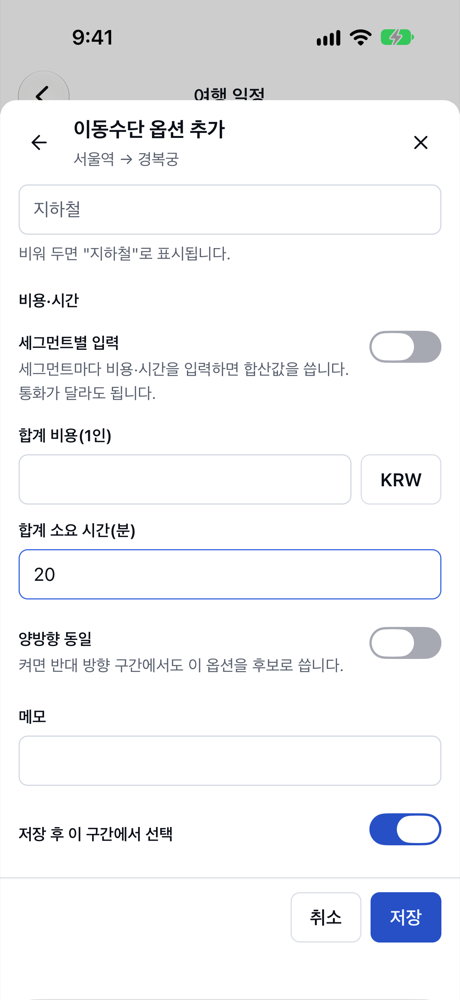
<p>방문 사이의 구간 줄을 누르면 <strong>구간 이동수단</strong> 편집기가 열립니다. <strong>옵션 추가</strong>를 눌러 수단(지하철·버스·도보·택시 등)과 <strong>합계 소요 시간(분)</strong>을 넣고 저장합니다. 요금이나 노선 번호는 비워 둬도 됩니다.</p>

<figure class="shot">
  <img src="/assets/img/blog/p2-leg-option.png" alt="이동수단 옵션 추가(서울역 → 경복궁) 양식: 합계 소요 시간 20분, 저장 후 이 구간에서 선택 켜짐" loading="lazy" width="390" height="848" /><figcaption>구간에 지하철 20분 추가</figcaption>
</figure>

<p>한 구간에 여러 옵션(예: 지하철 20분, 택시 15분)을 넣어 두고 그중 하나를 고를 수 있습니다. 같은 두 장소 사이의 옵션은 다른 날에도 다시 쓸 수 있습니다.</p>

<h2 id="2-방문마다-체류-시간-정하기">2. 방문마다 체류 시간 정하기</h2>

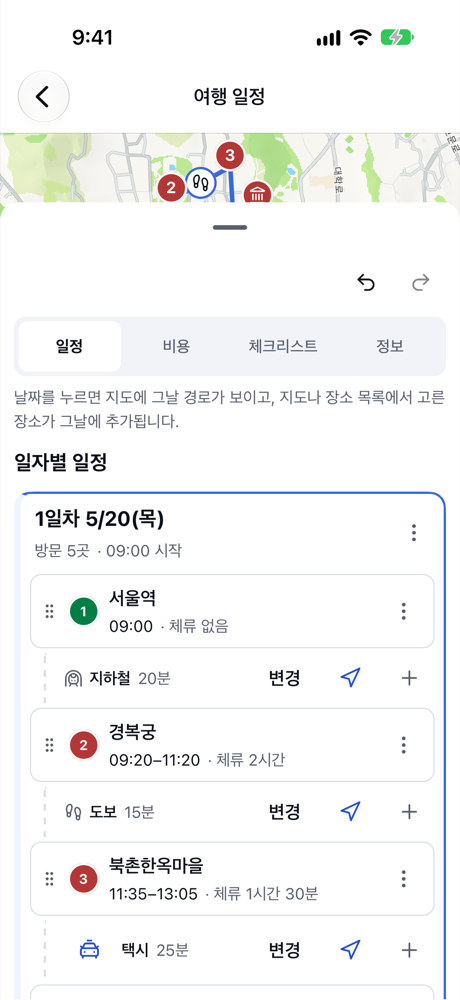
<p>방문을 눌러 편집기를 열고 <strong>체류 시간</strong>을 정합니다. 경복궁 2시간, 북촌한옥마을 1시간처럼 넣으면 하루 시간표가 자동으로 계산됩니다.</p>

<figure class="shot">
  <img src="/assets/img/blog/p2-day-card.png" alt="1일차 카드: 서울역 09:00, 지하철 20분, 경복궁 09:20–11:20, 도보 15분, 북촌한옥마을 11:35–13:05" loading="lazy" width="390" height="848" /><figcaption>시각이 계산된 하루 일정</figcaption>
</figure>

<p>꼭 지켜야 하는 시각이 있다면 방문 편집기의 <strong>고정 도착 시각</strong>에 넣습니다. 이 예에서는 광장시장 식당 예약 17:30을 고정했습니다.</p>

<h2 id="3-후보-장소를-미리-모아-두기">3. 후보 장소를 미리 모아 두기</h2>

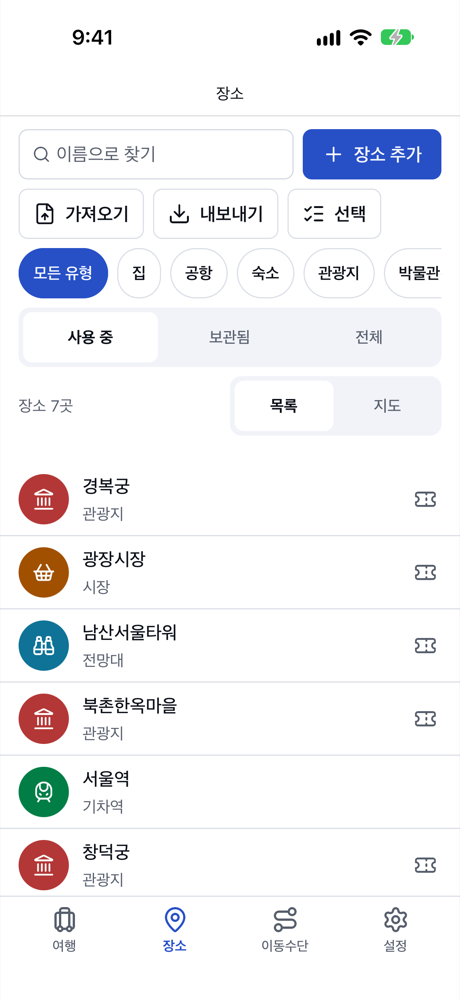
<p>일정에 넣지는 않았지만 시간이 나면 가고 싶은 곳은 <strong>장소</strong> 탭에서 미리 내 장소로 저장해 둡니다. 저장해 둔 장소는 방문을 추가할 때 바로 고를 수 있습니다.</p>

<figure class="shot">
  <img src="/assets/img/blog/p2-candidates.png" alt="장소 탭 내 장소 목록: 창덕궁, 청계천, 광장시장, 경복궁 등" loading="lazy" width="390" height="848" /><figcaption>후보로 모아 둔 내 장소</figcaption>
</figure>

<h2 id="4-일정이-밀리면-경고가-뜹니다">4. 일정이 밀리면 경고가 뜹니다</h2>

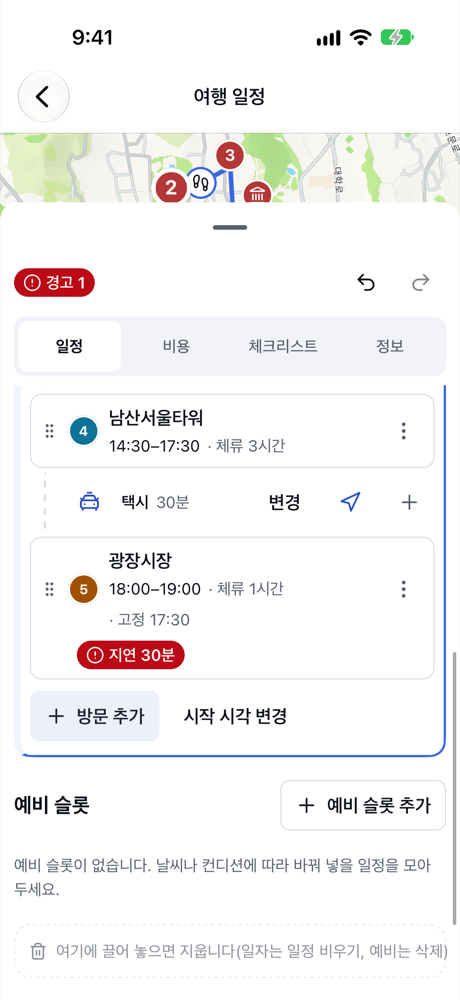
<p>여행 당일 경복궁에서 예상보다 오래 머물렀다고 해 봅시다. 경복궁 방문의 체류 시간을 3시간으로 고치면 뒤의 시각이 모두 밀리고, 고정 시각인 광장시장 예약에 늦게 됩니다. 방문 카드에 <strong>지연 n분</strong> 배지가 붙고, 여행 머리글의 <strong>경고</strong> 목록에도 나타납니다.</p>

<figure class="shot">
  <img src="/assets/img/blog/p2-late.png" alt="남산서울타워 14:30–17:30 뒤 광장시장 18:00 도착, 고정 17:30, 지연 30분 배지와 머리글의 경고 1" loading="lazy" width="390" height="848" /><figcaption>예약 시각보다 늦어질 때의 지연 배지</figcaption>
</figure>

<p>경고 항목을 누르면 해당 방문의 편집기로 바로 이동합니다.</p>

<h2 id="5-못-가게-된-곳을-지우고-후보-장소-넣기">5. 못 가게 된 곳을 지우고 후보 장소 넣기</h2>

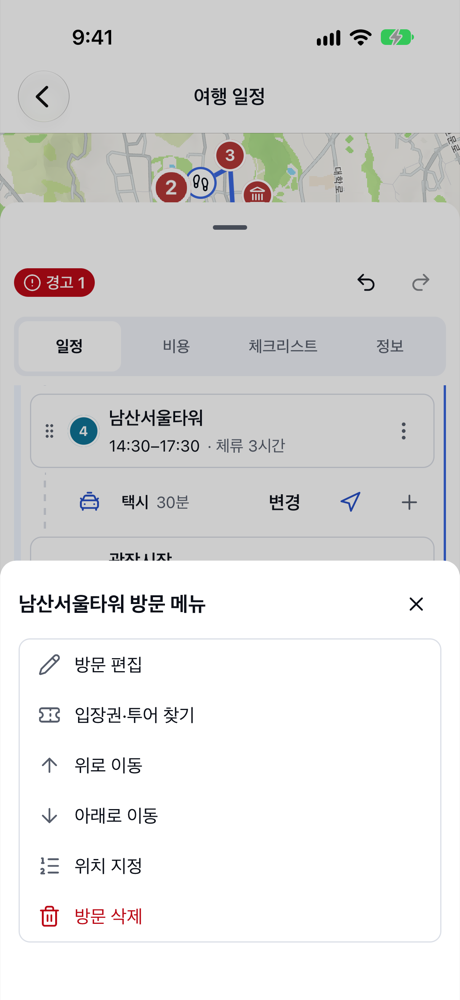
<p>이제 갈 수 없게 된 곳을 일정에서 뺍니다. 시내에서 멀리 떨어진 남산서울타워의 방문 메뉴에서 <strong>방문 삭제</strong>를 누릅니다. 잘못 지웠다면 아래에 뜨는 알림의 <strong>실행 취소</strong>로 되돌릴 수 있습니다.</p>

<figure class="shot">
  <img src="/assets/img/blog/p2-remove.png" alt="남산서울타워 방문 메뉴: 방문 편집, 입장권·투어 찾기, 위로 이동, 아래로 이동, 위치 지정, 방문 삭제" loading="lazy" width="390" height="848" /><figcaption>방문 메뉴에서 방문 삭제</figcaption>
</figure>

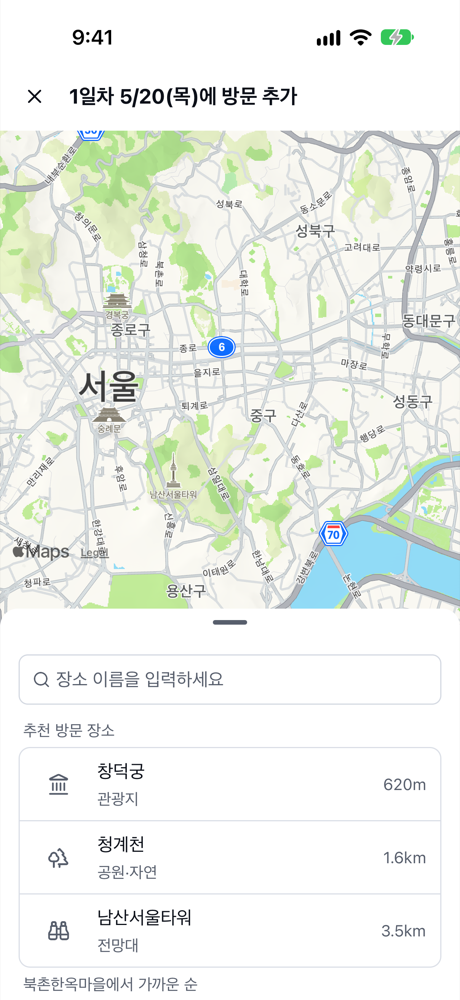
<p>그 자리에 가까운 후보를 넣습니다. 북촌한옥마을과 광장시장 사이 구간 줄의 <strong>+</strong>(여기에 장소 넣기)를 누르면 장소 선택기가 열리고, <strong>추천 방문 장소</strong>에 넣을 자리 바로 앞 장소(북촌한옥마을)에서 가까운 순으로 내 장소가 보입니다. 미리 저장해 둔 창덕궁을 고릅니다.</p>

<figure class="shot">
  <img src="/assets/img/blog/p2-picker-nearby.png" alt="방문 추가 선택기의 추천 방문 장소: 북촌한옥마을에서 가까운 순으로 창덕궁 620m, 청계천 1.6km, 남산서울타워 3.5km" loading="lazy" width="390" height="848" /><figcaption>추천 방문 장소에서 후보 고르기</figcaption>
</figure>

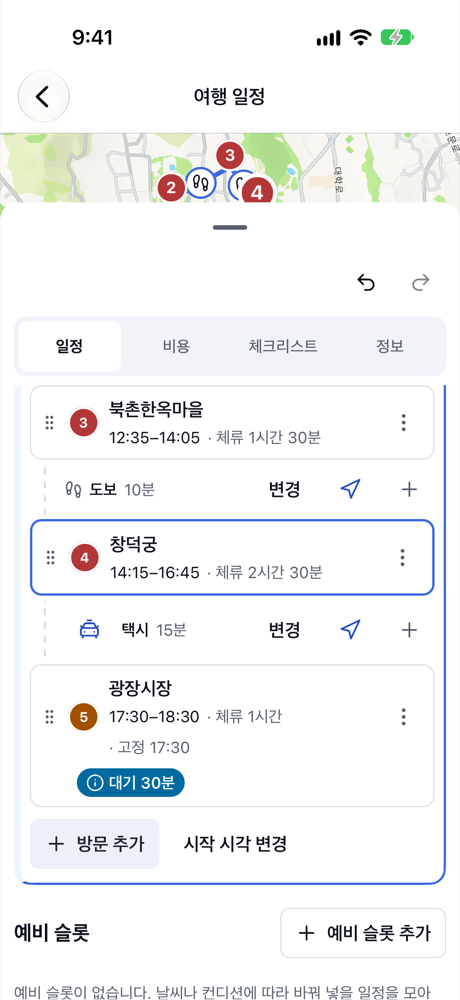
<p>창덕궁을 넣고 체류 시간을 2시간 30분으로 정하면 시간표가 다시 계산됩니다. 광장시장에 예약 시각보다 먼저 도착하므로 지연 경고가 사라지고, 남는 시간은 <strong>대기 30분</strong>처럼 표시됩니다. 후보 장소 사이의 이동수단을 미리 넣어 두었다면 그 시간도 그대로 반영됩니다.</p>

<figure class="shot">
  <img src="/assets/img/blog/p2-resolved.png" alt="북촌한옥마을, 도보 10분, 창덕궁 14:15–16:45, 택시 15분, 광장시장 17:30–18:30 고정 17:30, 대기 30분" loading="lazy" width="390" height="848" /><figcaption>후보 장소로 바꾼 뒤의 일정</figcaption>
</figure>

<h2 id="정리">정리</h2>

<ul>
  <li>구간에 <strong>이동수단·소요 시간</strong>, 방문에 <strong>체류 시간</strong>을 넣으면 하루 시간표가 자동으로 계산됩니다.</li>
  <li>꼭 지켜야 하는 시각은 <strong>고정 도착 시각</strong>으로 정하면, 늦어질 때 <strong>지연 n분</strong> 경고로 알려 줍니다.</li>
  <li>후보 장소를 내 장소에 모아 두면, 일정이 밀렸을 때 방문을 지우고 구간 줄의 <strong>+</strong>로 <strong>추천 방문 장소</strong>에서 가까운 후보를 바로 넣을 수 있습니다.</li>
</ul>]]></content><author><name></name></author><summary type="html"><![CDATA[간단한 하루 일정에 이동수단과 소요 시간을 더하고 후보 장소를 미리 모아 둔 뒤, 일정이 밀려 못 가게 된 곳을 후보 장소로 바꾸는 방법입니다.]]></summary><media:thumbnail xmlns:media="http://search.yahoo.com/mrss/" url="https://flex-trip.net/assets/img/blog/p2-late.png" /><media:content medium="image" url="https://flex-trip.net/assets/img/blog/p2-late.png" xmlns:media="http://search.yahoo.com/mrss/" /></entry><entry xml:lang="en"><title type="html">Add transport and times, and swap places when you run late</title><link href="https://flex-trip.net/en/blog/delay-swap/" rel="alternate" type="text/html" title="Add transport and times, and swap places when you run late" /><published>2026-10-21T02:00:00+00:00</published><updated>2026-10-21T02:00:00+00:00</updated><id>https://flex-trip.net/en/blog/delay-swap</id><content type="html" xml:base="https://flex-trip.net/en/blog/delay-swap/"><![CDATA[<p>Once you add transport and travel times to a route, Flex Trip Planner works out arrival and departure times for every visit and builds a timetable for the day. With a timetable, you can see right away what to drop when you fall behind on the day.</p>

<p>Our example is a day in Seoul. Start at Seoul Station, visit Gyeongbokgung Palace, Bukchon Hanok Village and N Seoul Tower, then have an early dinner at a restaurant in Gwangjang Market booked for 5:30 PM. Changdeokgung Palace and Cheonggyecheon Stream, both nearby, are kept as backups.</p>

<p>The app’s screens are in Korean. Below, button names are given in Korean with an English translation.</p>

<h2 id="1-add-transport-and-travel-time-to-a-leg">1. Add transport and travel time to a leg</h2>

<p>Tap the row between two visits (a leg) to open the <strong>구간 이동수단</strong> (Leg transport) editor. Tap <strong>옵션 추가</strong> (Add option), pick a mode (subway, bus, walk, taxi and more), enter <strong>합계 소요 시간(분)</strong> (Total travel time, minutes) and save. You can leave the fare and line number blank.</p>

<figure class="shot">
  <img src="/assets/img/blog/p2-leg-option.png" alt="Add transport option form (Seoul Station → Gyeongbokgung): total travel time 20 minutes, select on this leg after saving turned on" loading="lazy" width="390" height="848" /><figcaption>Adding a 20-minute subway ride to a leg</figcaption>
</figure>

<p>You can keep several options on one leg (say, subway 20 min and taxi 15 min) and pick one. Options between the same two places can be reused on other days.</p>

<h2 id="2-set-how-long-you-stay-at-each-visit">2. Set how long you stay at each visit</h2>

<p>Tap a visit to open the editor and set <strong>체류 시간</strong> (Time spent). Enter 2 hours for Gyeongbokgung, 1 hour for Bukchon and so on, and the day’s timetable is calculated for you.</p>

<figure class="shot">
  <img src="/assets/img/blog/p2-day-card.png" alt="Day 1 card: Seoul Station 09:00, subway 20 min, Gyeongbokgung 09:20–11:20, walk 15 min, Bukchon Hanok Village 11:35–13:05" loading="lazy" width="390" height="848" /><figcaption>A day plan with calculated times</figcaption>
</figure>

<p>If a time is fixed, enter it as <strong>고정 도착 시각</strong> (Fixed arrival time) in the visit editor. Here the Gwangjang Market booking at 17:30 is fixed.</p>

<h2 id="3-keep-backup-places-ready">3. Keep backup places ready</h2>

<p>Places you might visit if you have time go into your saved places on the <strong>장소</strong> (Places) tab. Saved places can be picked straight away when you add a visit.</p>

<figure class="shot">
  <img src="/assets/img/blog/p2-candidates.png" alt="Saved places list on the Places tab: Changdeokgung, Cheonggyecheon, Gwangjang Market, Gyeongbokgung and more" loading="lazy" width="390" height="848" /><figcaption>Backup places kept in your saved places</figcaption>
</figure>

<h2 id="4-a-warning-appears-when-you-fall-behind">4. A warning appears when you fall behind</h2>

<p>Say you spend longer than planned at Gyeongbokgung. Change its time spent to 3 hours, and every later time moves back, so you’d miss the fixed 17:30 booking at Gwangjang Market. The visit card gets a <strong>지연 n분</strong> (n min late) badge, and the warning also shows in the <strong>경고</strong> (Warnings) list at the top of the trip.</p>

<figure class="shot">
  <img src="/assets/img/blog/p2-late.png" alt="N Seoul Tower 14:30–17:30, then Gwangjang Market arriving 18:00 with a fixed 17:30, a 30 min late badge, and 1 warning at the top" loading="lazy" width="390" height="848" /><figcaption>A late badge when you'll miss a booked time</figcaption>
</figure>

<p>Tap a warning to jump straight to that visit’s editor.</p>

<h2 id="5-remove-the-place-you-cant-reach-and-add-a-backup">5. Remove the place you can’t reach and add a backup</h2>

<p>Now take out the place you no longer have time for. In the menu of N Seoul Tower, which is far from the rest, tap <strong>방문 삭제</strong> (Delete visit). If you remove the wrong one, tap <strong>실행 취소</strong> (Undo) in the message that appears.</p>

<figure class="shot">
  <img src="/assets/img/blog/p2-remove.png" alt="Menu for the N Seoul Tower visit: edit visit, find tickets and tours, move up, move down, set position, delete visit" loading="lazy" width="390" height="848" /><figcaption>Deleting a visit from its menu</figcaption>
</figure>

<p>Then fill the gap with a nearby backup. Tap <strong>+</strong> (Add a place here) on the leg row between Bukchon Hanok Village and Gwangjang Market. The place picker opens, and <strong>추천 방문 장소</strong> (Suggested places) lists your saved places by distance from the place just before the gap (Bukchon). Pick Changdeokgung, which you saved earlier.</p>

<figure class="shot">
  <img src="/assets/img/blog/p2-picker-nearby.png" alt="Suggested places in the add-visit picker, by distance from Bukchon Hanok Village: Changdeokgung 620 m, Cheonggyecheon 1.6 km, N Seoul Tower 3.5 km" loading="lazy" width="390" height="848" /><figcaption>Picking a backup from suggested places</figcaption>
</figure>

<p>Add Changdeokgung, set its time spent to 2 hours 30 minutes, and the timetable is recalculated. You now reach Gwangjang Market before the booked time, so the late warning disappears and the spare time shows as <strong>대기 30분</strong> (30 min wait). If you already added transport between your backup places, those times are used too.</p>

<figure class="shot">
  <img src="/assets/img/blog/p2-resolved.png" alt="Bukchon Hanok Village, walk 10 min, Changdeokgung 14:15–16:45, taxi 15 min, Gwangjang Market 17:30–18:30 fixed at 17:30, 30 min wait" loading="lazy" width="390" height="848" /><figcaption>The day after swapping in a backup</figcaption>
</figure>

<h2 id="summary">Summary</h2>

<ul>
  <li>Add <strong>transport and travel times</strong> to legs and <strong>time spent</strong> to visits, and the day’s timetable is calculated for you.</li>
  <li>Set times you must keep as <strong>고정 도착 시각</strong> (Fixed arrival time), and a <strong>지연 n분</strong> (n min late) warning tells you when you’ll miss them.</li>
  <li>Keep backups in your saved places. When you fall behind, delete a visit and use <strong>+</strong> on the leg row to add a nearby backup from <strong>추천 방문 장소</strong> (Suggested places).</li>
</ul>]]></content><author><name></name></author><category term="en" /><summary type="html"><![CDATA[Add transport and travel times to a simple day plan, keep a few backup places ready, and when you fall behind, replace the place you can no longer reach with one of them.]]></summary><media:thumbnail xmlns:media="http://search.yahoo.com/mrss/" url="https://flex-trip.net/assets/img/blog/p2-late.png" /><media:content medium="image" url="https://flex-trip.net/assets/img/blog/p2-late.png" xmlns:media="http://search.yahoo.com/mrss/" /></entry></feed>