
Add transport and times, and swap places when you run late
Add transport and travel times to a simple day plan, keep a few backup places ready, and when you fall behind, replace the place you can no longer reach with one of them.
Once you add transport and travel times to a route, Flex Trip Planner works out arrival and departure times for every visit and builds a timetable for the day. With a timetable, you can see right away what to drop when you fall behind on the day.
Our example is a day in Seoul. Start at Seoul Station, visit Gyeongbokgung Palace, Bukchon Hanok Village and N Seoul Tower, then have an early dinner at a restaurant in Gwangjang Market booked for 5:30 PM. Changdeokgung Palace and Cheonggyecheon Stream, both nearby, are kept as backups.
The app’s screens are in Korean. Below, button names are given in Korean with an English translation.
1. Add transport and travel time to a leg
Tap the row between two visits (a leg) to open the 구간 이동수단 (Leg transport) editor. Tap 옵션 추가 (Add option), pick a mode (subway, bus, walk, taxi and more), enter 합계 소요 시간(분) (Total travel time, minutes) and save. You can leave the fare and line number blank.
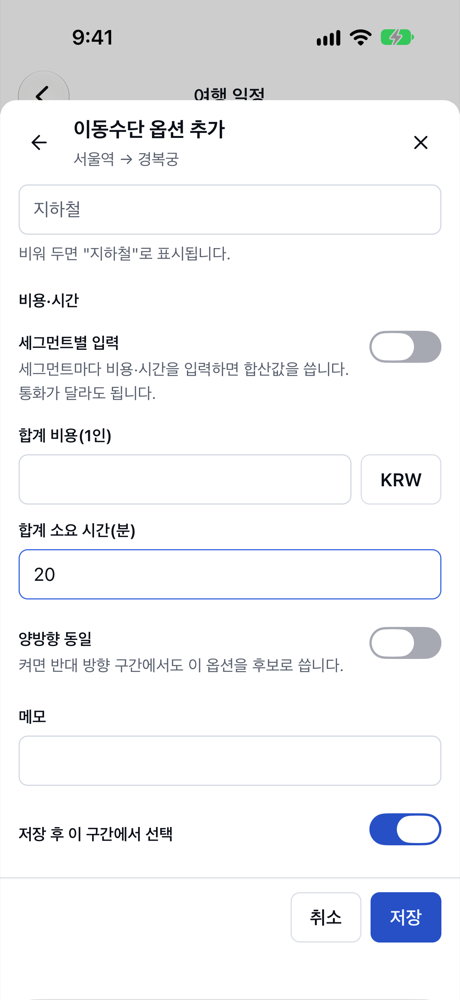
You can keep several options on one leg (say, subway 20 min and taxi 15 min) and pick one. Options between the same two places can be reused on other days.
2. Set how long you stay at each visit
Tap a visit to open the editor and set 체류 시간 (Time spent). Enter 2 hours for Gyeongbokgung, 1 hour for Bukchon and so on, and the day’s timetable is calculated for you.
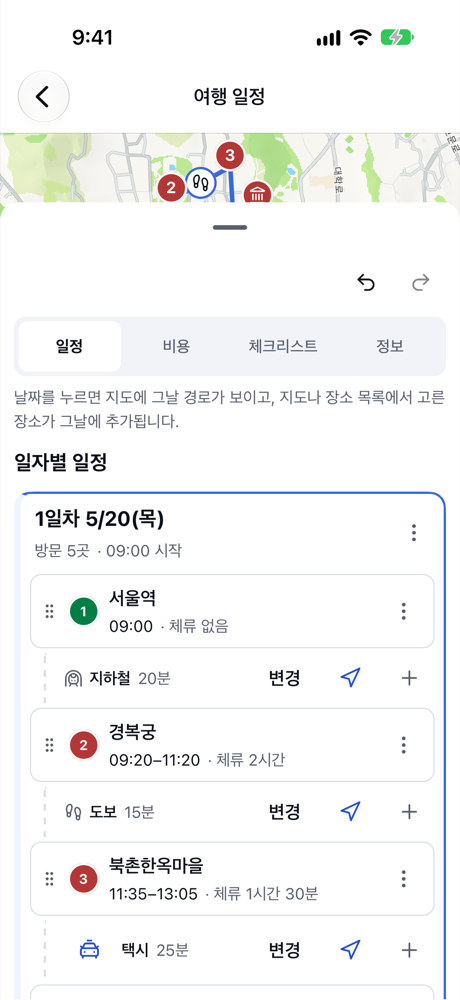
If a time is fixed, enter it as 고정 도착 시각 (Fixed arrival time) in the visit editor. Here the Gwangjang Market booking at 17:30 is fixed.
3. Keep backup places ready
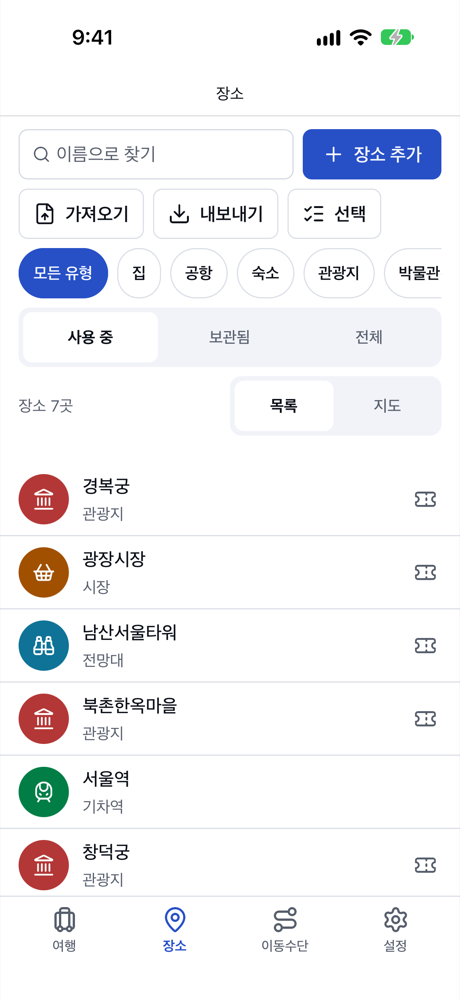
Places you might visit if you have time go into your saved places on the 장소 (Places) tab. Saved places can be picked straight away when you add a visit.
4. A warning appears when you fall behind
Say you spend longer than planned at Gyeongbokgung. Change its time spent to 3 hours, and every later time moves back, so you’d miss the fixed 17:30 booking at Gwangjang Market. The visit card gets a 지연 n분 (n min late) badge, and the warning also shows in the 경고 (Warnings) list at the top of the trip.
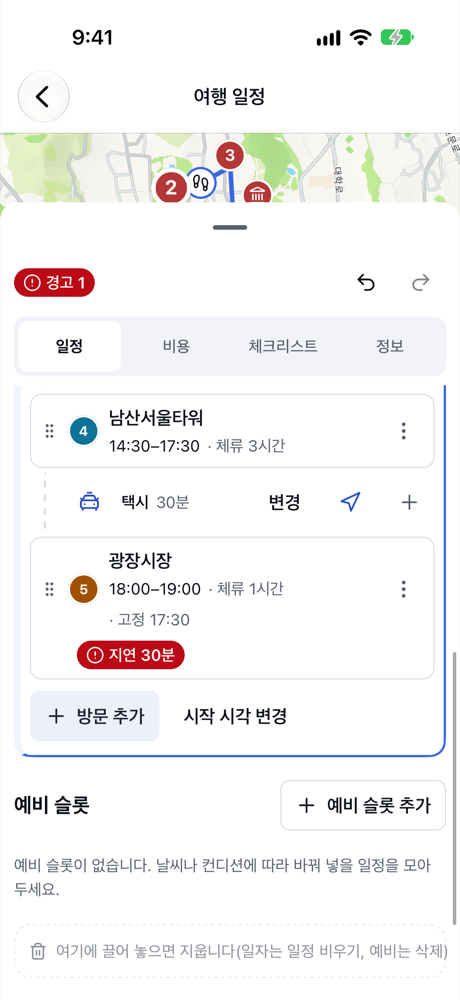
Tap a warning to jump straight to that visit’s editor.
5. Remove the place you can’t reach and add a backup
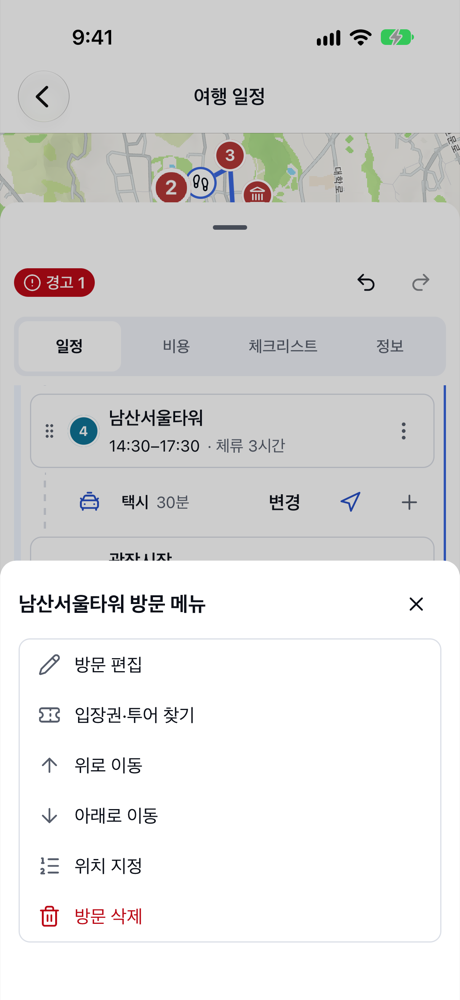
Now take out the place you no longer have time for. In the menu of N Seoul Tower, which is far from the rest, tap 방문 삭제 (Delete visit). If you remove the wrong one, tap 실행 취소 (Undo) in the message that appears.
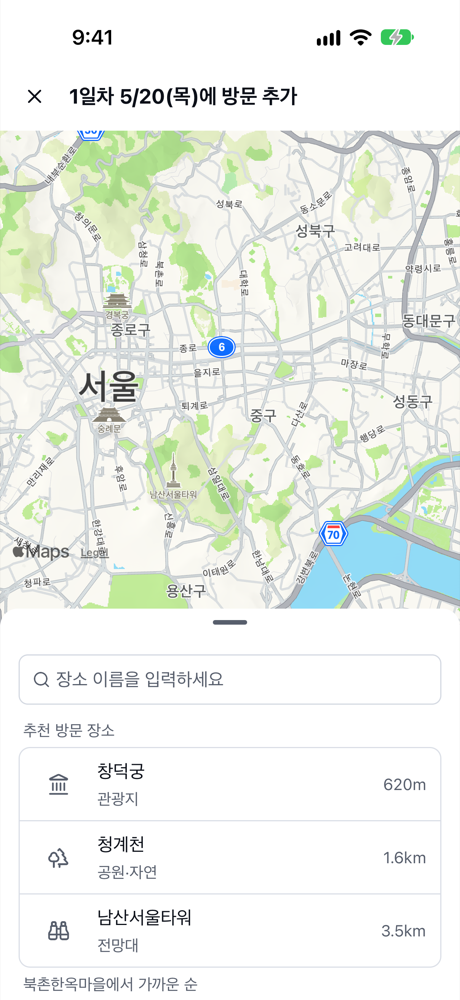
Then fill the gap with a nearby backup. Tap + (Add a place here) on the leg row between Bukchon Hanok Village and Gwangjang Market. The place picker opens, and 추천 방문 장소 (Suggested places) lists your saved places by distance from the place just before the gap (Bukchon). Pick Changdeokgung, which you saved earlier.
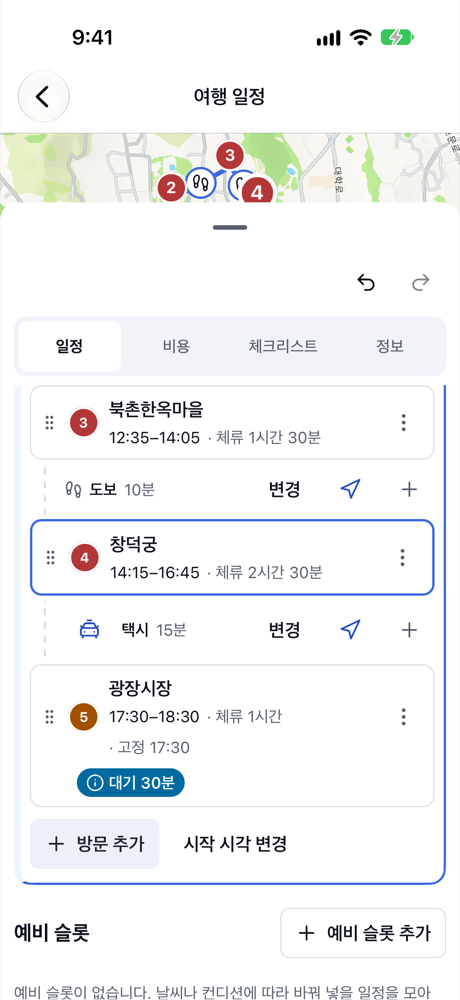
Add Changdeokgung, set its time spent to 2 hours 30 minutes, and the timetable is recalculated. You now reach Gwangjang Market before the booked time, so the late warning disappears and the spare time shows as 대기 30분 (30 min wait). If you already added transport between your backup places, those times are used too.
Summary
- Add transport and travel times to legs and time spent to visits, and the day’s timetable is calculated for you.
- Set times you must keep as 고정 도착 시각 (Fixed arrival time), and a 지연 n분 (n min late) warning tells you when you’ll miss them.
- Keep backups in your saved places. When you fall behind, delete a visit and use + on the leg row to add a nearby backup from 추천 방문 장소 (Suggested places).