
Make a trip from places you saved in Google My Maps (KML or KMZ)
Collect places by day in Google My Maps, export them as KML or KMZ, and import the file to create a day-by-day draft trip in one go.
Many people research a trip on a computer and mark the places they want to see in Google My Maps. Flex Trip Planner can import the KML or KMZ file you export from My Maps, add all the places at once, and even create a draft trip with a day for each layer.
Our example is a 3-day trip to Kyoto.
The app’s screens are in Korean. Below, button names are given in Korean with an English translation.
1. Collect places by day in Google My Maps
Open Google My Maps in a computer browser and create a new map. Name the layers by day, such as “Day 1” and “Day 2” (or “1일차”, “2일차”), and add each day’s places. When you import, the app reads the day from each layer name.
- Day 1: Kinkaku-ji, Ryoan-ji, Nijo Castle
- Day 2: Ginkaku-ji, Kiyomizu-dera
- Day 3: Fushimi Inari Shrine, Arashiyama
Layers without a day in their names import too. The app then splits days by the order in the file, and you can change this in the preview.
2. Export as KML or KMZ
From the menu (⋮) next to the map’s name, choose Export to KML/KMZ and download the file.
- Export the entire map to get every layer’s places in one file.
- Both KML and KMZ can be imported. A KMZ file is a compressed KML.
- Turn off options like keep data up to date with network link. With it on, the file contains a link instead of your places.
Save the file to iCloud Drive or Google Drive, or send it to your phone by email or a messaging app. You can also open it in this app straight from the Files app or the share menu on your phone.
3. In the app, “Create trip from file”
On the Trips tab, tap 파일로 여행 만들기 (Create trip from file).
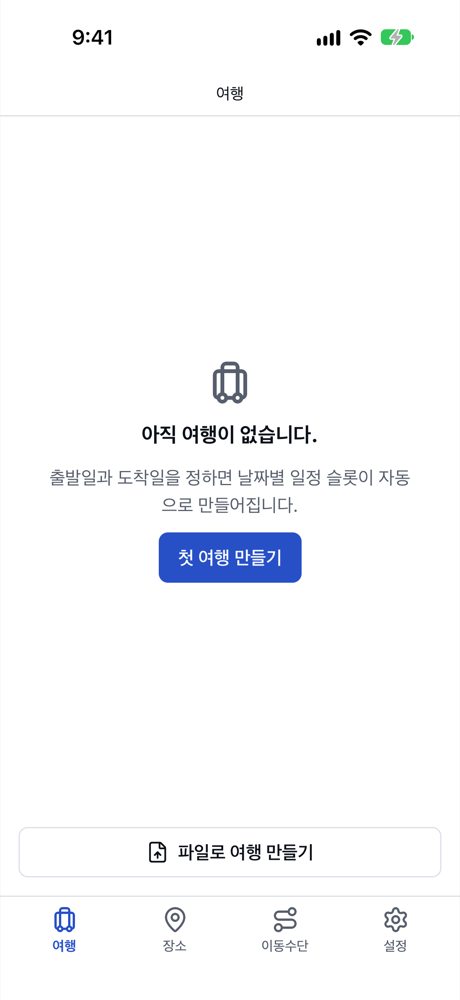
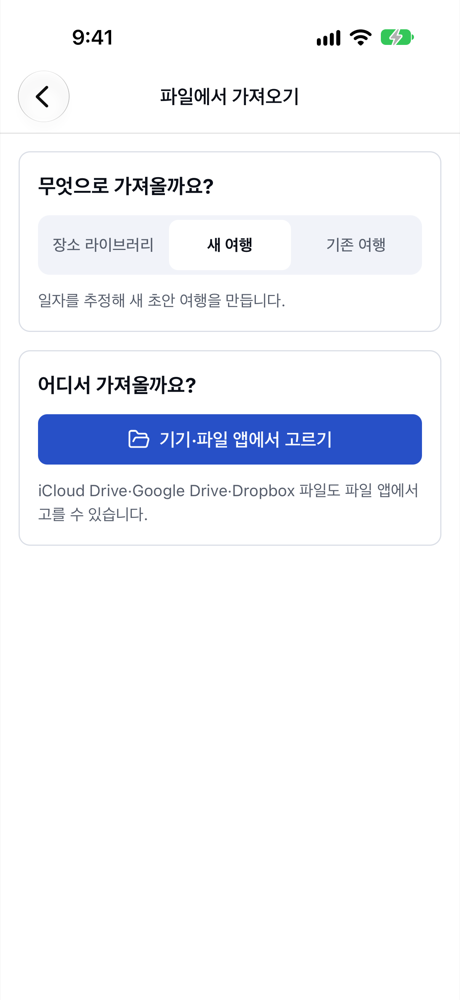
On the 파일에서 가져오기 (Import from file) screen, leave 무엇으로 가져올까요? (Import as) on 새 여행 (New trip), then under 어디서 가져올까요? (Import from) tap 기기·파일 앱에서 고르기 (Choose from device or Files) and pick the exported file. Files saved in iCloud Drive, Google Drive or Dropbox can be picked in the Files app too.
4. Check the days in the preview
After you pick the file, a preview opens. It shows how many places and route lines were found, and which day each layer (group) goes to.
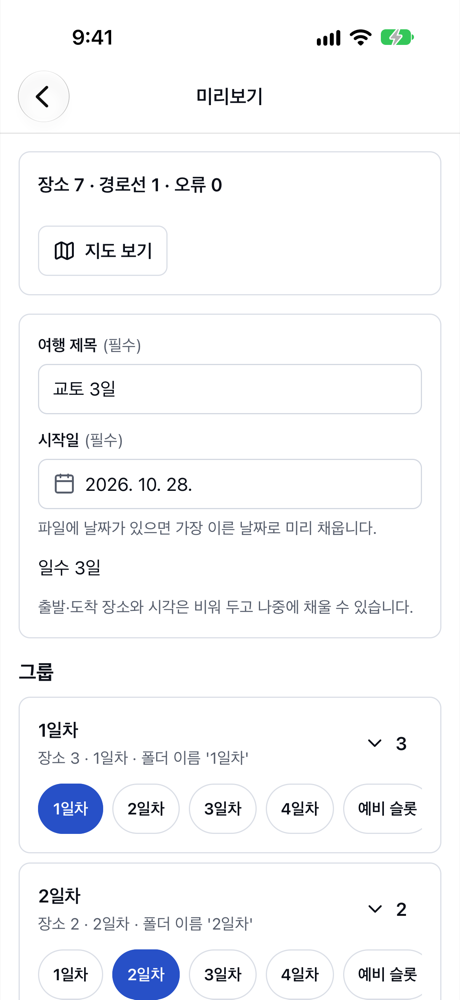
- Set the 여행 제목 (Trip title) and 시작일 (Start date). The number of days follows the number of day groups.
- For each group you can choose N일차 (Day N), 예비 슬롯 (Spare slot), 장소만 (Places only) or 제외 (Skip).
- If your My Maps has driving or walking directions (route lines), 경로선으로 이동수단 초안 만들기 (Draft transport from route lines) also drafts transport for those legs.
- Places with an address but no coordinates are fixed in 위치 확인 (Check locations), and places that match ones you already saved in 중복 처리 (Duplicates).
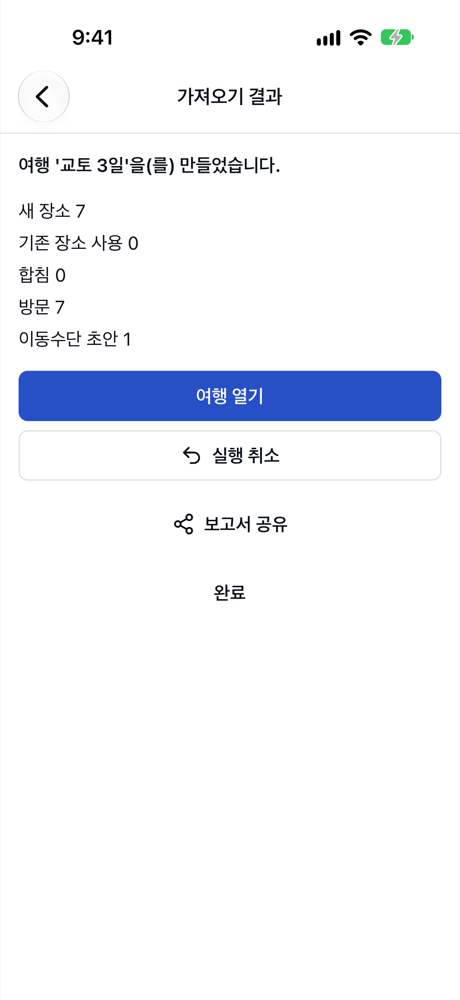
Tap 여행 만들기 (Create trip), and the result screen opens.
5. Polish the draft trip
Tap 여행 열기 (Open trip) to see the draft trip with places sorted into days. The driving route line from My Maps became a 자동차 (Car) transport draft for Kinkaku-ji → Ryoan-ji. Now fine-tune the order of visits and time spent, and fill in departure and arrival places and transport to finish the plan.
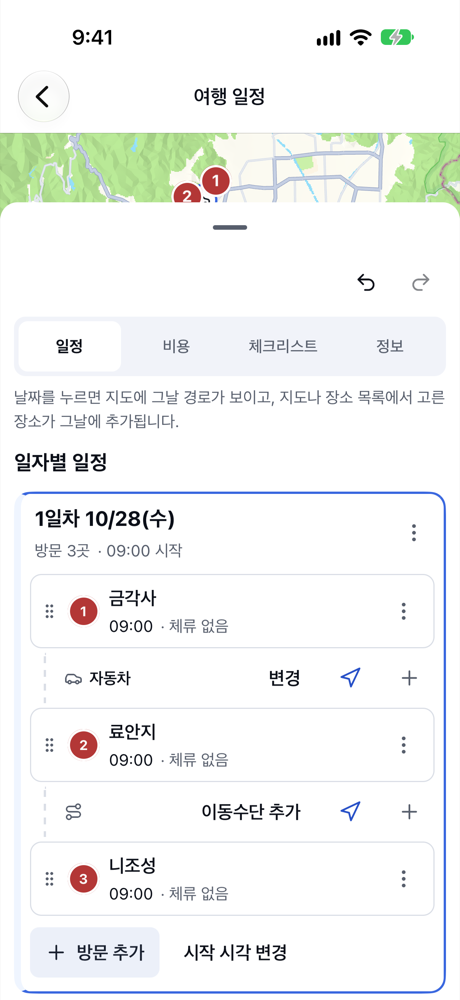
- Imported trips are created as daily schedules.
- Departure and arrival places and times start empty, so fill them in from the trip info.
- If you don’t like the result, 실행 취소 (Undo) on the result screen takes you back to before the import.
Summary
- In Google My Maps, name layers by day (“Day 1”, “Day 2”) so the days carry over.
- Get the file with Export to KML/KMZ and bring it in with 파일로 여행 만들기 (Create trip from file).
- Check the days, title and start date in the preview, and a day-by-day draft trip is ready.