Export your trip as KML and view it in Google My Maps
Export the places of a trip you planned in the app as a KML file with a folder per day, then open it in Google My Maps to see it on a bigger screen or share it with travel companions.
Sometimes you want to see your plan on a bigger screen, or show it on a map to a travel companion who doesn’t use the app. In Flex Trip Planner, export the places used in a trip as KML, and you can open them in Google My Maps or Google Earth.
Here we take the Kyoto trip made in the previous post, polish it, and send it back to My Maps.
The app’s screens are in Korean. Below, button names are given in Korean with an English translation.
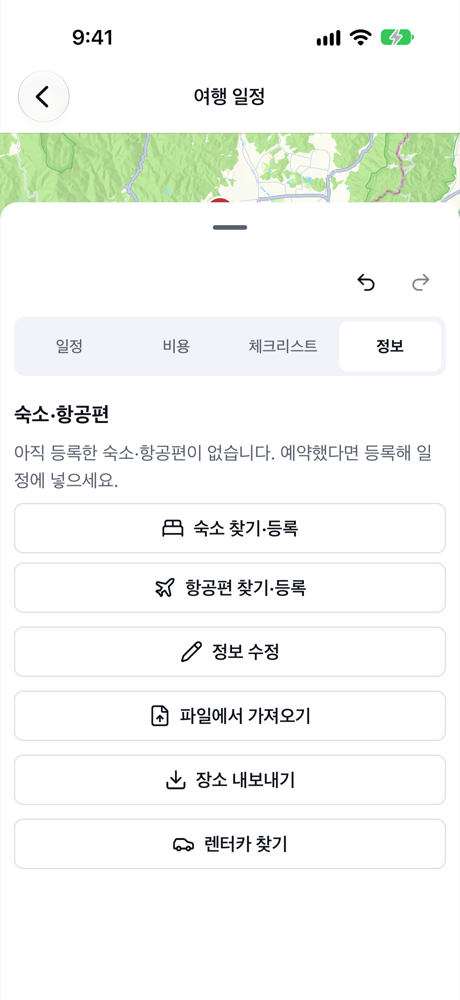
1. “Export places” from the trip info
Open the trip and, on the 정보 (Info) tab, tap 장소 내보내기 (Export places).
2. Choose the scope and format
On the 장소 내보내기 (Export places) screen, choose 여행에 쓰인 장소 (Places used in the trip) as the scope and KML(Google 지도·Earth) (KML for Google Maps and Earth) as the format.
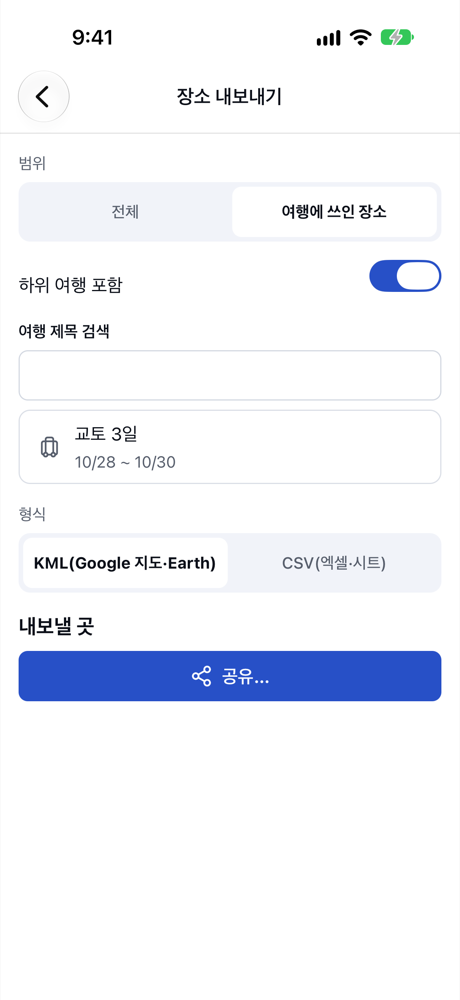
- With 하위 여행 포함 (Include sub-trips) on, the places in each city’s detailed plan (sub-trip) are included too.
- For a table, choose CSV(엑셀·시트) (CSV for Excel and Sheets).
3. Send the file
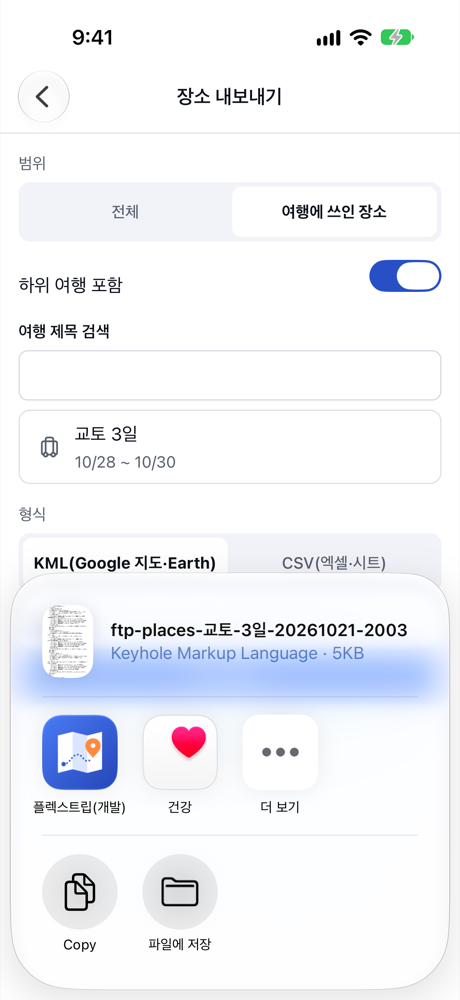
Tap 공유… (Share…) to open the share sheet. Save the file to the Files app (iCloud Drive), or send it to your computer by email or a messaging app. If you’ve connected Google Drive or Dropbox, you can also upload it directly with …에 저장 (Save to …).
The exported KML contains:
- One folder per day (for example “1일차 10/28”, Day 1 Oct 28), with places in visit order.
- Each place’s name, address and notes.
- Places in spare slots in folders like “예비 1” (Spare 1), and the trip’s departure and arrival places in a separate “출발·도착” (Departure and arrival) folder.
- No route lines between places.
4. Import it into Google My Maps
In a computer browser, open Google My Maps, tap Create a new map, and choose the KML file under Import in a layer. Your trip’s places appear as pins, and you can click a pin to see its name, address and notes.
- The day folders may not come in as separate layers. To see days separately, split the layers yourself and move the pins.
- In My Maps, Add directions lets you draw the route between pins yourself.
- Use Share to send the finished map to your companions as a link.
If you edit the map in My Maps and export it as KML again, you can bring it back into the app as shown in Make a trip from places you saved in Google My Maps.
Summary
- Export 여행에 쓰인 장소 (Places used in the trip) as KML from 장소 내보내기 (Export places) on the trip’s 정보 (Info) tab.
- The file has a folder per day in visit order, but no route lines.
- Open it with Import in Google My Maps to view it on a big screen or share it with companions.